
Voicemail Greeting Text to Speech
Paste your greeting and listen to it in the voices your device already has.
Free · runs in your browser · nothing is uploaded
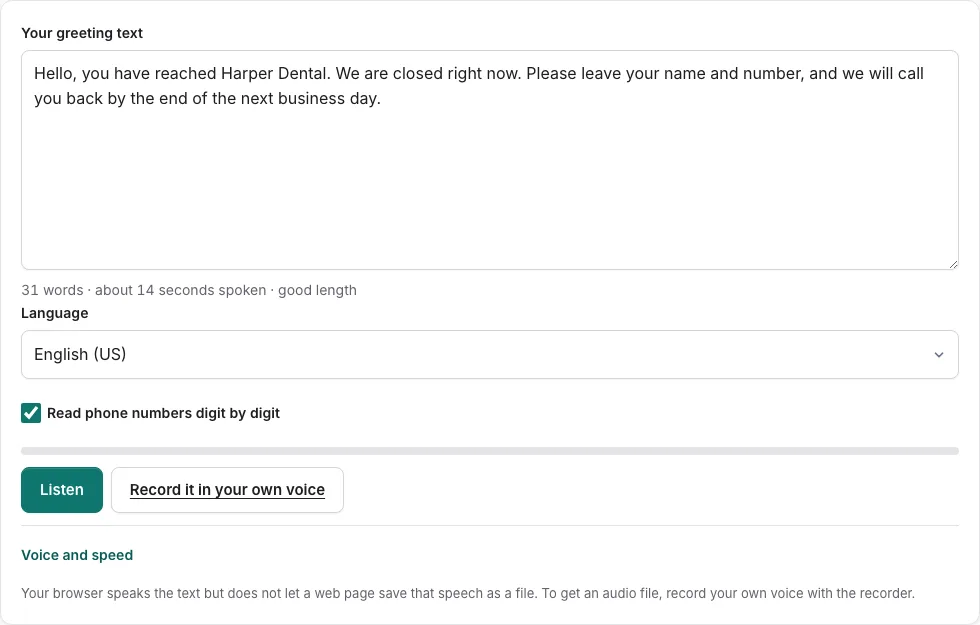
How to use the Voicemail Greeting Text to Speech
Type or paste your greeting into the text box, then follow these steps.
- Choose a language: English (US), English (UK), English (Australia), Español, Français, Deutsch, Português Brasil or Italiano.
- Open the voice list and pick a voice. Voices come from your phone or computer, so the list differs between devices. Voices marked with a star are streamed from an online service.
- Set the speed between 0.7 and 1.3. Lower values slow the greeting down; higher values speed it up.
- Set the pitch between 0.8 and 1.2.
- If the greeting includes a callback number, tick the box to read phone numbers digit by digit.
- Press Listen and watch the progress bar fill.
- Press Stop at any time, edit your text, and listen again until it sounds right.
Why does a long greeting still play in full?
Long greetings play through without cutting off, because the tool reads long text one sentence at a time. Some browser engines stop speaking after about 15 seconds, so splitting by sentence avoids that.
Can I download the greeting?
The tool has no download button, and a web page cannot save browser speech as an audio file. If you need the greeting as a file, use the recorder linked at the end of this page to record your own voice.
How does voicemail greeting text to speech work?
The tool passes your text to your browser’s built-in speech engine, which reads it aloud. The voices you hear are the ones installed on your device, so they vary between phones and computers. Some are marked with a star because the browser streams them from an online service. This site does not send your text anywhere, but a streamed voice sends your text to that service, so pick an unstarred voice if that matters to you.
Some speech engines stop after about 15 seconds, so the tool reads long text sentence by sentence. This keeps a longer greeting from cutting off partway through. Phone numbers are the other common problem. With the digit-by-digit box ticked, a number is read one digit at a time, so a caller can write it down. The tool also shows how many voices your device has, so you know how much choice you have before you start.
What do the speed and pitch controls change?
Speed and pitch change how the greeting sounds, not what it says. Each control has a fixed range.
| Control | Range | What it changes |
|---|---|---|
| Speed | 0.7 to 1.3 | How fast the voice talks |
| Pitch | 0.8 to 1.2 | How high or low the voice sounds |
| Language | 8 options | Language and accent of the voice |
| Digit-by-digit box | On or off | Reads phone numbers one digit at a time |
Move one control at a time and press Listen again, so you can hear the difference. The progress bar shows how far the reading has got, and Stop ends it early. A slower speed often helps a caller take down a callback number. Settings that sound right on one device may sound different on another, because the installed voices differ.
Can I download the greeting as a file?
No. A web page cannot save browser speech as an audio file, so there is no download here. To get a file, record your own voice with the recorder. Natural-sounding downloadable voices are not offered on this site.
Frequently asked questions
How long should a voicemail greeting be?
Keep it long enough to name the person or business the caller reached, say why you cannot answer, and ask for what you need. Keep it short enough that callers do not hang up before the beep. Press Listen to time your greeting before you record it.
What should an out of office voicemail say?
Name the day you return, how often you check messages, and a backup person for anything urgent. Put the return date first, since it answers the caller’s first question.
What should an after-hours voicemail greeting say?
Tell callers the office is closed, give the time you open again, and name a backup option for anything urgent. Keep those three points in that order so callers can follow them quickly.
Can I make greetings in different languages?
Yes. Choose from English (US), English (UK), English (Australia), Español, Français, Deutsch, Português Brasil or Italiano in the language list, then pick a voice for that language. The voices shown depend on your device.
Which voice is best for a business voicemail?
The clearest voice your device offers is usually the right choice for business callers. Use the same greeting, press Listen on several voices, and keep the one that sounds clearest at a speed callers can follow. Test on the device you will use for your business line.
Can I download the voice as a file?
No. A web page cannot save browser speech as an audio file, so this tool has no download. To get voicemail greeting audio as a file, record your own voice with the recorder.
Related tools
- How to Record a Voicemail Greeting Online: Use it for record and download a phone-ready WAV.
- Voicemail Greeting Generator: Use it for greeting scripts for 17 situations.
- What to Say in a Voicemail Greeting: Check Yours: Use it for paste yours and see what is missing.
- Voicemail Greeting WAV Converter: Use it for convert audio to a phone-system WAV.
- Voicemail Script Generator: What to Say When You Leave One: Use it for scripts for messages you leave.
- Voicemail Message Examples: Use it for 70 message examples to personalise.
- Voicemail Tools: Use it to browse message scripts, read-aloud, recorder, converter.