
How to Record a Voicemail Greeting Online
Read your script, press record, and download a clean WAV for your phone system.
Free · runs in your browser · nothing is uploaded
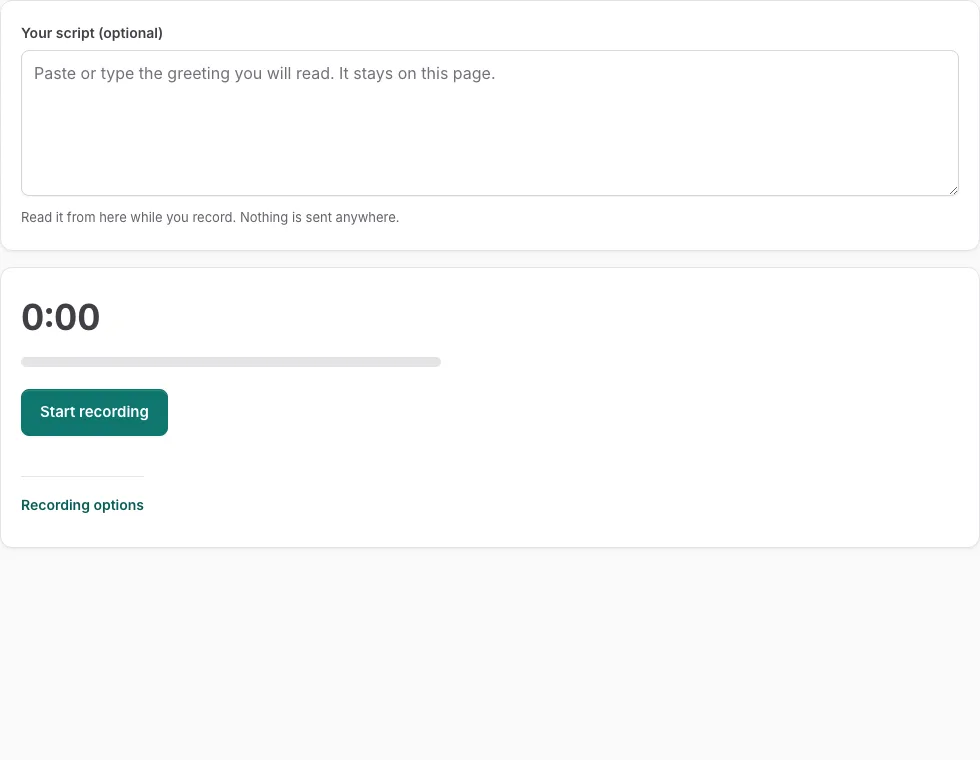
How to use the voicemail greeting recorder
- Type or paste your greeting into the script box above the recorder so you can read it while you record.
- Press Start recording.
- When the browser asks, allow microphone access.
- Read your script at a steady pace, then press Stop. The timer turns red after 30 seconds, and recording stops by itself at 3 minutes.
- Listen back using the waveform and the player, and replay it as needed.
- Open the format menu and choose the preset that matches your phone system (for example, 8 kHz G.711 mu-law WAV for North America or Japan).
- Check the duration, file size and sample rate shown for the result before you download it.
- Download the file in your chosen format.
Two options run automatically: reduce background noise and adjust the volume automatically, both on by default. They use the browser’s own noise suppression and gain control. You can also switch off “Cut silence at the start and end” and “normalize” if you want the recording untouched. “Cut silence” removes sound quieter than -45 dBFS and keeps about 0.12 s on each side, and “normalize” scales the loudest peak to -1 dBFS. Use “Download original” only if you want the raw browser recording (m4a on Safari, webm or ogg elsewhere), since phone systems usually do not accept it.
Which file format does my phone system need?
Most office phone systems accept 8 kHz 16-bit mono WAV, which is the safest default. If your phone system runs in North America or Japan, choose G.711 mu-law. If it runs in Europe or most other countries, choose G.711 A-law. Use the table below to match your location or system type.
| Format preset | Best for |
|---|---|
| 8 kHz 16-bit mono WAV | Most office phone systems |
| 8 kHz G.711 mu-law WAV | North America, Japan |
| 8 kHz G.711 A-law WAV | Europe and most other countries |
| 16 kHz 16-bit mono WAV | Wideband VoIP |
| 44.1 kHz 16-bit mono WAV | Best quality |
If you are not sure which one to pick, check your phone system’s documentation or ask the administrator who manages it. After recording, the page shows the duration, file size and sample rate of the result, so you can compare them with those requirements.
How to record a voicemail greeting
A clear voicemail greeting gives your name, your company or team, and a short reason you cannot answer, then asks the caller to leave a message. Keep it short and read it in a quiet room. Writing the script first keeps the recording smooth. A script box above the recorder keeps your text on screen while you record.
Use this structure for your script:
- A greeting, such as “Hello, you’ve reached…”
- Your name.
- Your company or team.
- A simple reason you missed the call.
- An invitation to leave a name, a number and a message.
To record the greeting:
- Press Start recording.
- Allow the microphone when the browser asks.
- Read your script.
- Press Stop. The timer turns red after 30 seconds, and recording stops by itself at 3 minutes.
Reduce background noise and adjust volume automatically are both on by default. After recording, you can cut silence at the start and end, which removes sound quieter than -45 dBFS, and normalize the loudest peak to -1 dBFS. Both can be switched off.
Read the script aloud once before you press Start recording. If you make a mistake, record again rather than editing the audio. Download original saves the browser’s raw recording, but phone systems usually do not accept it.
Frequently asked questions
Can I make a voicemail greeting in my own voice?
Yes. The recorder captures audio from your own microphone, so the greeting is your voice. You can read your script as many times as you need before you choose a take.
Why can’t I record a voicemail greeting?
The most common cause is that microphone access has not been allowed. When the browser asks, allow the microphone, then press Start recording again. Recording also stops by itself at 3 minutes, so keep the greeting short.
Do you supply suggested scripts?
The recorder does not write scripts for you. The script box above the recorder keeps your own text on screen, and the voicemail greeting generator can send its script to that box for the session.
Why is the end of my recording cut off?
“Cut silence at the start and end” removes sound quieter than -45 dBFS and keeps about 0.12 s on each side, so a soft final word can be trimmed. Switch that option off and record the greeting again to keep the full ending.
How often should I update my voicemail greeting?
Update it whenever your position, your schedule or your availability changes. An outdated greeting can send callers in the wrong direction.
Can I personalize my voicemail greeting for different purposes?
Yes. Record a separate greeting for each situation, such as a regular day, a holiday or a time when you are away, and then upload the one you need. Keep each script short so it is quick to change.
Can I use the original download on my phone system?
Usually not. “Download original” saves the raw recording made by your browser, which is m4a on Safari and webm or ogg on other browsers. Choose one of the WAV presets instead, since those are the formats phone systems are built to play.
Related tools
- Voicemail Greeting WAV Converter: Use it for convert audio to a phone-system WAV.
- Voicemail Greeting Text to Speech: Use it for listen with your device’s voices.
- Voicemail Greeting Generator: Use it for greeting scripts for 17 situations.
- Voicemail Script Generator: What to Say When You Leave One: Use it for scripts for messages you leave.
- Voicemail Message Examples: Use it for 70 message examples to personalise.
- Voicemail Tools: Use it to browse message scripts, read-aloud, recorder, converter.