
How to Set a Voicemail Greeting on Zoom Phone
Write and record the greeting here, then upload the WAV in Zoom Phone's audio library.
Free · runs in your browser · nothing is uploaded
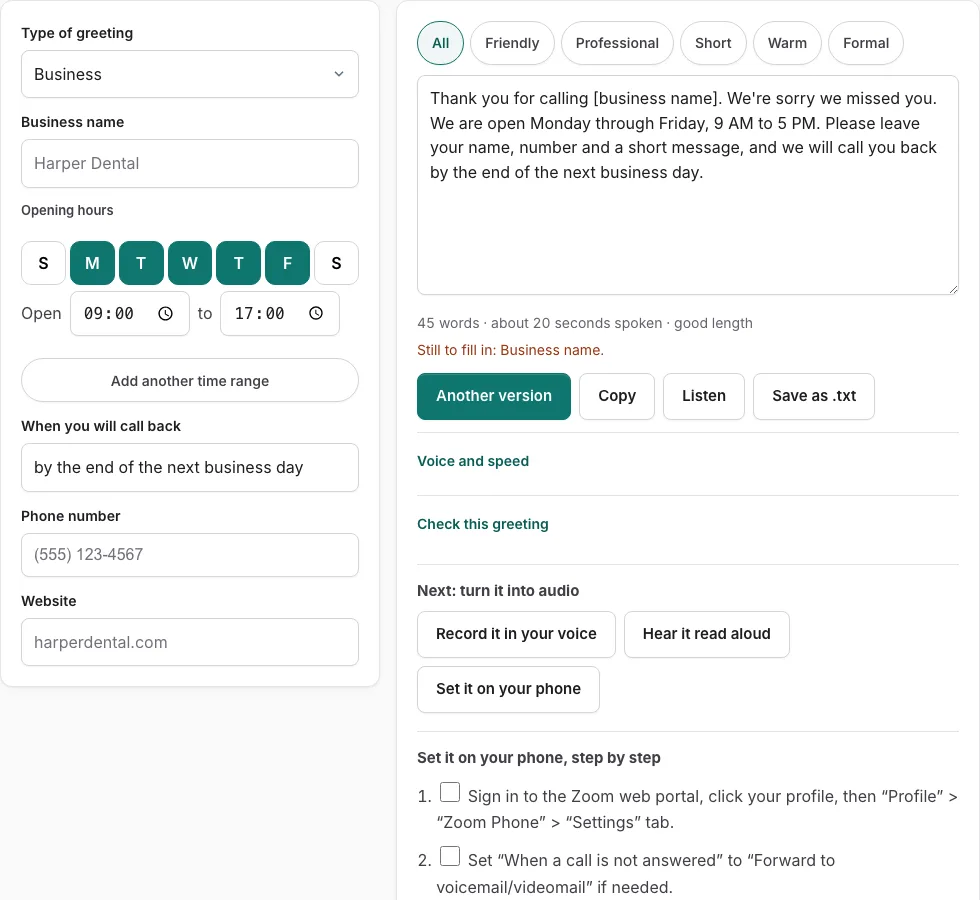
Steps to set your Zoom Phone greeting
Write your script above, then follow these steps.
Before you start
- Admin grants the Personal Audio Library privilege.
Web portal - record or upload
- Sign in to the Zoom web portal, click your profile, then “Profile” > “Zoom Phone” > “Settings” tab.
- Set “When a call is not answered” to “Forward to voicemail/videomail” if needed.
- Under “Greeting & Leave voicemail instruction” click “Edit”, then “Add Audio” (or “Choose from Asset Library”).
- Record by Computer tab: allow the microphone, fill “Asset Name”, “Category”, “Language”, record, then “Add”. Upload tab: fill the same fields, click “Upload” under “Audio upload”, choose the file, then “Add”.
Zoom Workplace app
- Click your profile picture, “Settings”, then “Phone”.
- In “Voicemail and forwarding” pick the “Business hours” or “Closed hours” tab.
- Set “When a call goes unanswered” to forward to another extension, tick “Send unanswered calls to my voicemail”.
- Under “Voicemail greeting” choose “Add new greeting”, select a language, then add text-to-speech, upload a file or record on the computer. Choose “Default” to revert.
Desk phone
- Dial *86 (or press the Voicemail key), enter your PIN and #.
- Press 2 to record, record, press any key to finish.
- Listen, then press 1 to save or 2 to re-record.
Limits: MP3 or WAV, under 10 MB; 100 files; 3,000 characters text-to-speech; 4-minute recordings.
Sources, checked 2026-10-27: Zoom Support: voicemail greetings; Zoom Support: audio library; Zoom Support: Workplace app voicemail
How do I set up a voicemail greeting on Zoom Phone?
To set up a voicemail greeting on Zoom Phone, write a short script, record it as a WAV file, confirm your account has the audio-library privilege, then upload the file and follow Zoom’s official steps. The tool covers the first two parts, and Zoom handles the rest. Each part is covered below.
Start with the words, because a clear script makes the recording easier. A useful greeting says who you are, why you cannot answer, what the caller should leave and when you will reply. Use the greeting generator, placed above the steps, to fill in those four parts, then remove anything a caller does not need to hear. Keep it short; Zoom’s Workplace app allows recordings up to 4 minutes, and text-to-speech up to 3,000 characters, but a greeting far shorter than that will usually serve callers better.
Recording comes next, once the script is set. Pick a quiet room, hold the phone about a hand’s width from your mouth and speak at a steady pace. Background noise gets recorded too, and callers will hear it every time they reach your voicemail. Play it back once before you move on, and record again if anything sounds unclear.
The recorder on this page exports a WAV file built to Zoom’s published limits. Zoom’s audio library accepts MP3 or WAV files under 10 MB, and it holds up to 100 files. An admin must grant the audio-library privilege before you can upload, so ask early if you do not have it. Recordings in the Zoom Workplace app can run up to 4 minutes, as noted above.
Once the file is ready, follow the official steps listed below the tool on this page. Tick each check box as you finish it, so you can see where you stopped if you come back later.
Update the greeting whenever your hours or availability change. An old greeting can send callers the wrong information, and that is the most common reason to record a new one.
Frequently asked questions
Can I upload a voicemail greeting to Zoom Phone?
Yes. Zoom’s audio library accepts MP3 or WAV files under 10 MB, and it holds up to 100 files. An admin has to grant the audio-library privilege before you can upload, and the recorder on this page exports a WAV that fits those limits.
Why can’t I upload or record a voicemail greeting?
If an upload is refused, check two things: that an admin has granted the audio-library privilege, and that the file is MP3 or WAV and under 10 MB. Recording problems usually come from the room, so move to a quiet spot and keep the phone close.
How do I set up a custom voicemail greeting?
Write your own script in the greeting generator, then record it in a quiet room. Once the WAV file is ready, follow the official steps below the tool to finish the setup.
What file format and size does a Zoom Phone greeting need?
Zoom’s audio library takes MP3 or WAV files under 10 MB. The recorder on this site exports WAV, which meets that rule. Zoom says the Workplace app records up to 4 minutes, so keep a greeting well inside that.
How long should my voicemail greeting be?
Keep it short and clear. The length line under the tool estimates your script in seconds, and Zoom’s 4-minute recording limit is a ceiling, not a target.
How do I test my voicemail greeting?
After you record it, call your own number from another phone to hear what callers hear. Check that the greeting says who you are, why you cannot answer, what to leave and when you will reply.
Related tools
- How to Change Voicemail Greeting on iPhone: Use it when the greeting is ready and you need the steps for iPhone.
- How to Change Voicemail Greeting on Android: Use it when the greeting is ready and you need the steps for Android.
- How to Change Voicemail Greeting on Samsung: Use it when the greeting is ready and you need the steps for Samsung.
- How to Set Up Google Voicemail Greeting: Use it when the greeting is ready and you need the steps for Google Voice.
- How to Change Voicemail Greeting on Verizon: Use it when the greeting is ready and you need the steps for Verizon.
- How to Change Voicemail Greeting on AT&T: Use it when the greeting is ready and you need the steps for AT&T.
- Voicemail Greeting Generator: Use it for greeting scripts for 17 situations.
- How to Set a Voicemail Greeting: Use it to browse iPhone, Android, Samsung, carriers and office phone systems.