
How to Set Voicemail Greeting on Vonage
Write your greeting with our interactive generator, verify speaking duration, and follow verified Vonage steps to record or upload your audio.
Free · runs in your browser · nothing is uploaded
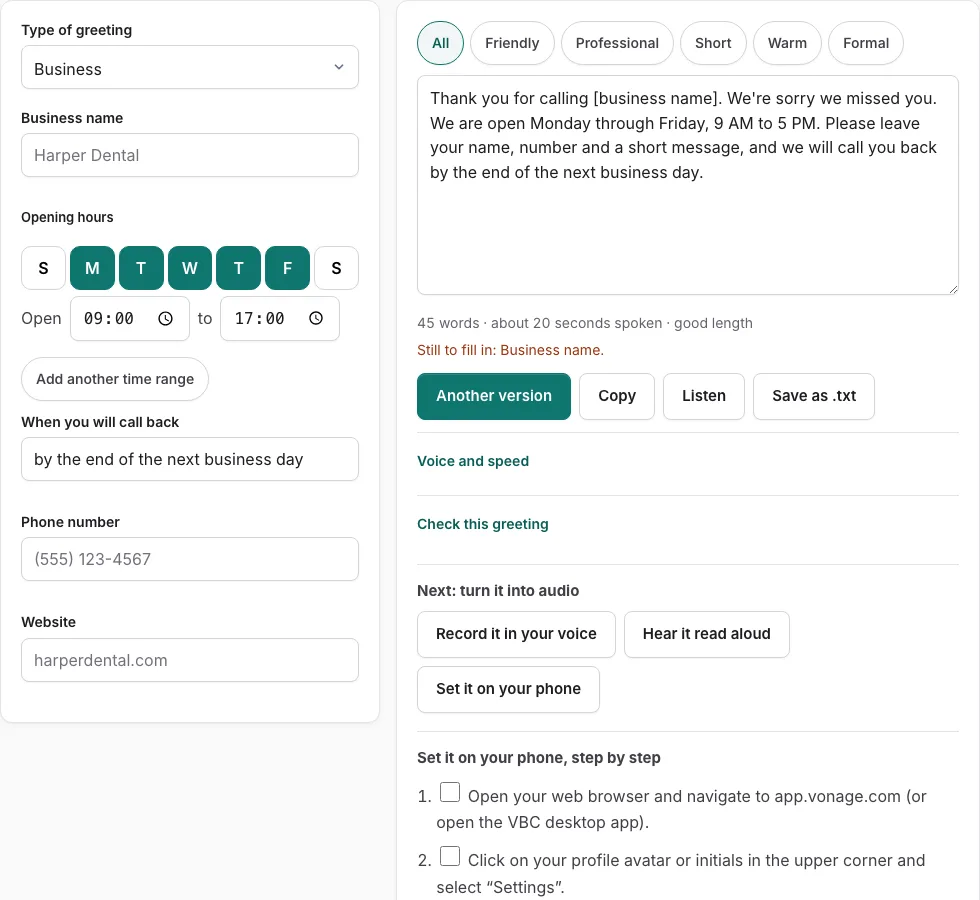
Steps to set your Vonage voicemail greeting
Follow these verified steps to update your business voicemail greeting in Vonage Business Communications (VBC).
Before you start
- Log in to your Vonage Business Communications portal at app.vonage.com with your user credentials.
- If uploading an audio file, ensure it is formatted as an 8 kHz or 16 kHz Mono WAV or MP3 file (under 5 MB).
Option 1: Uploading audio in the VBC Portal (Web & Desktop)
- Open your web browser and navigate to app.vonage.com (or open the VBC desktop app).
- Click on your profile avatar or initials in the upper corner and select “Settings”.
- Click “Call Settings” in the navigation menu, then select “Voicemail”.
- Under “Voicemail Greeting”, click “Manage Voicemail Greeting”.
- Select “Custom Greeting” (replacing the default automated announcement).
- Click “Upload Audio” and select your exported WAV or MP3 file from your computer.
- Click the play icon to test audio fidelity and volume level.
- Click “Save” to apply the greeting immediately to your extension.
Option 2: Recording by phone (*100 shortcut)
- Lift the handset on your Vonage IP desk phone or launch the VBC mobile app keypad.
- Dial *100 (or your assigned voicemail feature access code) and press Call.
- Enter your extension number and personal voicemail PIN followed by # when prompted.
- Press 3 to access the Personal Options menu.
- Press 1 to record a new personal greeting.
- Wait for the tone, speak your prepared script clearly, and press # as soon as you finish speaking.
- Press 1 to save and deploy the greeting, or press 2 to listen to the playback and re-record.
VBC Auto Attendants versus Individual Extension Voicemail
Vonage Business Communications provides robust multi-level call routing capabilities. Depending on whether you are configuring the company’s main phone number or your individual team extension, settings are managed in different portal sections.
Modifying the company auto-attendant requires administrator privileges and affects all callers dialing your main advertised business telephone number.
| Feature Comparison | Extension Voicemail | VBC Auto Attendant (Virtual Receptionist) |
|---|---|---|
| Who manages it | Individual extension user or admin | Company account administrator only |
| Portal location | User Settings > Call Settings > Voicemail | Admin Portal > Phone System > Auto Attendants |
| Purpose | Personal unanswered call mailbox | Multi-level touch-tone IVR routing menu |
| Max file size | 5 MB (Mono WAV or MP3) | 5 MB (Mono WAV or MP3) |
| Recommended length | 20 to 25 seconds | 15 to 30 seconds |
How to optimize your Vonage voicemail audio
Vonage encodes voice traffic using standard G.711 u-law and wideband G.722 codecs. To achieve optimal audio clarity on all incoming telephone connections:
- Maintain an even speaking pace between 125 and 140 words per minute to allow callers to clearly understand dates and contact names.
- Use our free WAV converter tool to resample audio to 8 kHz 16-bit Mono WAV, which matches telecommunication switches without requiring lossy on-the-fly transcoding.
- Avoid opening greetings with prolonged silence or loud background music that could trigger false voicemail detection algorithms.
- Conclude with a clear request for the caller’s name, telephone number, and message context so your staff can follow up effectively.
Vonage company-wide holiday call schedules
Administrators can configure company-wide Holiday Schedules in the VBC Admin Portal. When active, holiday schedules automatically redirect all incoming company calls to your dedicated holiday greeting without requiring manual extension adjustments.
Best practices for Vonage shared call appearance lines
If your extension participates in a Shared Call Appearance (SCA) group across multiple physical handsets, ensure that your voicemail greeting specifies your personal extension number so callers know their message is directed to your private mailbox.
Setting up multi-device voicemail alerts
Vonage Business Communications supports real-time desktop pop-ups, mobile push alerts, and email notifications whenever a caller leaves a voice message, keeping your responsive service standards high.
Frequently asked questions
What audio formats are supported for Vonage voicemail greeting uploads?
Vonage supports MP3 and WAV files up to 5 MB in size. For highest clarity without distortion, 8 kHz or 16 kHz Mono 16-bit WAV format is recommended.
How do I check my Vonage voicemail from an outside mobile phone?
Dial your direct Vonage business phone number. When your voicemail greeting begins playing, press * on your keypad, enter your extension and voicemail PIN, and press #.
Does Vonage send voicemail notifications to email?
Yes. In the VBC portal under Voicemail settings, enable “Voicemail to Email” to receive an email notification with the caller ID, an attached MP3 audio file, and optional voice transcription.
What is the default Vonage voicemail PIN?
Vonage sends a temporary voicemail PIN upon extension activation via your welcome email. Users must change this PIN during their initial *100 dial-in setup.
How do I record a temporary out-of-office greeting in Vonage?
In Call Settings > Voicemail, select “Temporary Greeting”. This plays instead of your standard greeting until disabled, preserving your permanent recording.
Can Vonage voicemails be forwarded to another extension?
Yes. Through the VBC desktop app or *100 phone menu, users can forward saved voicemail messages with optional introductory comments to another colleague extension.
Related tools
- Business Voicemail Greeting Generator: Commercial scripts
- After Hours Voicemail Greeting: Opening hours schedule
- How to Set Voicemail Greeting on Nextiva: NextOS upload
- How to Set Voicemail Greeting on RingCentral: Cloud PBX
- Voicemail Greeting WAV Converter: 8 kHz telephone audio
- What to Say in a Voicemail Greeting: Content checklist