
How to Set a Voicemail Greeting on RingCentral
Write and record the greeting here, then import the WAV in the RingCentral app on desktop or web.
Free · runs in your browser · nothing is uploaded
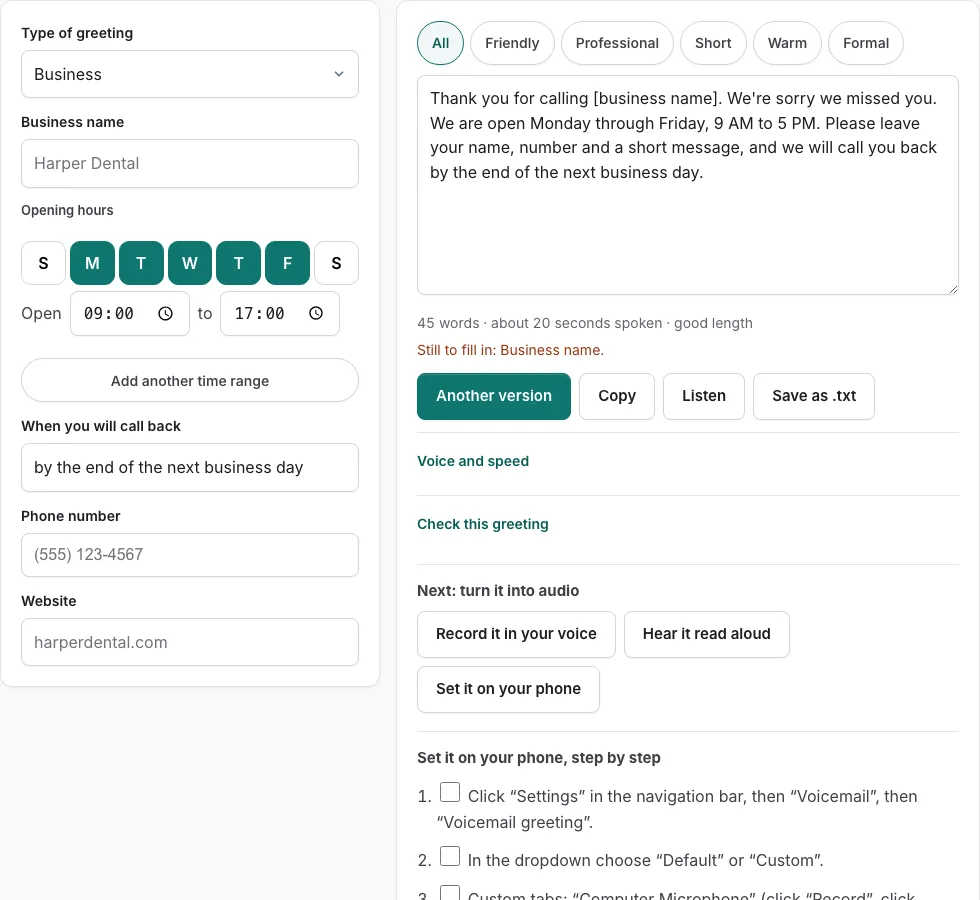
RingCentral voicemail greeting setup lets you record up to 5 minutes or import a WAV or MP3 up to 20 MB, and the recorder on this site exports a WAV within that limit. Choose a script or write your own first, and check its length before you start. Then follow the steps below it, ticking each check box as you finish it.
The sections below cover importing a greeting file, the limits RingCentral publishes, and what a greeting should say. You can also learn how to test what callers hear once it is set.
RingCentral lets you record a greeting of up to 5 minutes, or import a WAV or MP3 file up to 20 MB. Importing works from a computer (the RingCentral app on desktop or web, or the Admin Portal), while the mobile app can only record. The page does not state a sample-rate requirement.
Steps to set your RingCentral greeting
Script first in the tool above, then follow these steps.
Before you start
- Another user’s greeting needs Admin Portal access; no plan requirement is stated.
Desktop and web app
- Click “Settings” in the navigation bar, then “Voicemail”, then “Voicemail greeting”.
- In the dropdown choose “Default” or “Custom”.
- Custom tabs: “Computer Microphone” (click “Record”, click again to stop), “Phone” (enter number, “Call now”), “Importing” (upload WAV or MP3).
- Pick “Save messages in”: “My voicemail box” or “Another extension”, then click “Save”.
Mobile app
- Tap your profile picture, “Voicemail”, then “Voicemail greeting”.
- Choose “Default” or “Custom”; for Custom tap the red record button, tap again to finish, then “Save”.
- Set “Save messages in” as above.
Admin Portal (your own or another user)
- Own: Settings tab (or Admin Portal > “My Extension”) > “Phone” > “Voicemail settings” > “Voicemail greeting”.
- Another user: “Users” tab > user name > “Phone” > “Voicemail settings” > “Voicemail greeting”.
- Choose Default or Custom, set “Save messages in”, click “Save”.
By keypad
- Press the Voicemail button or dial *86, enter PIN then #.
- Press 2 to record, speak after the beep, press # when done.
- Press 1 to save; 2 listen, 3 re-record, 4 revert to default.
Limits: 5 minutes for computer microphone recording; WAV or MP3 up to 20 MB.
Good to know
- No sample rate or channel layout stated.
Sources, checked 2026-10-27: Setting up your voicemail greeting - RingCentral Support
Can I upload a greeting to RingCentral?
Yes. RingCentral lets you import a WAV or MP3 file, 20 MB at most, but only from a computer. The mobile app can only record, so use a computer if you already have an audio file. Recording a greeting directly in RingCentral is limited to 5 minutes.
| Option | Limit | Where it works |
|---|---|---|
| Record a greeting | Up to 5 minutes | Desktop and web app, Admin Portal, mobile app |
| Import a WAV file | 20 MB maximum | Computer: desktop, web, Admin Portal |
| Import an MP3 file | 20 MB maximum | Computer: desktop, web, Admin Portal |
RingCentral’s published help page does not state a sample-rate requirement, so the file size and format above are the limits to check. A long WAV file can pass that size cap quickly, so keep your recording well under 5 minutes and check the file size before you import.
How do I make a greeting for my voicemail?
Write the words first, then record. A useful greeting says who you are, why you cannot answer, what the caller should leave, and when you will reply. Keep it short, because callers want to reach the beep. Callers hear the greeting before the beep, so the first sentence matters most. The length line under the tool estimates the seconds your script will take, so use it to decide what to cut. Above the steps, the greeting generator asks you to choose or write the script first, then you follow the official steps below it, ticking off each step’s check box as you go.
When you record, sit in a quiet room and hold the phone about a hand’s width from your mouth. Speak at a steady pace and avoid rustling papers or background noise. Listen back before you accept the recording. Update the greeting whenever your hours or availability change, so callers hear accurate information. Keep the script in a separate note so you can reuse it when you update the greeting.
Frequently asked questions
What is a voicemail greeting for RingCentral?
It is the message callers hear when your RingCentral line goes to voicemail, before they leave their own message. A good one tells callers who they have reached and when you will get back to them. This page’s tool helps you write one and follow the official setup steps.
Do you supply suggested scripts?
Yes. The greeting generator above the steps lets you choose a script or write your own before you record. Pick your script first, then follow the official steps below the tool.
What do you include in a voicemail greeting recording?
Include your name, your company or team, a short reason you cannot take the call, and what the caller should leave, such as their name and number. End with when you will return the call. Keep each part to a sentence or two.
How do I upload the recordings to my phone system?
Import a WAV or MP3 file from the desktop or web app, or from the Admin Portal, as long as it stays under the size cap. The mobile app cannot import files, so use it only to record. Check the file size before you start the upload.
How long can my voicemail greeting be?
You can record a greeting up to 5 minutes long, but a much shorter greeting works better for callers. The length line under the tool estimates seconds as you write, so you can keep your message brief.
How can I test my voicemail greeting?
Call your own RingCentral number from another phone and listen to the greeting as a caller would hear it. Repeat this test after every change. If the audio is too quiet or the words run together, record it again.
How often should I update my greeting?
Update it whenever your hours or availability change, such as for holidays or a week away from your desk. An outdated greeting gives callers the wrong expectations. Run the test call again after each update.
Related tools
- How to Change Voicemail Greeting on iPhone: Use it when the greeting is ready and you need the steps for iPhone.
- How to Change Voicemail Greeting on Android: Use it when the greeting is ready and you need the steps for Android.
- How to Change Voicemail Greeting on Samsung: Use it when the greeting is ready and you need the steps for Samsung.
- How to Set Up Google Voicemail Greeting: Use it when the greeting is ready and you need the steps for Google Voice.
- How to Change Voicemail Greeting on Verizon: Use it when the greeting is ready and you need the steps for Verizon.
- How to Change Voicemail Greeting on AT&T: Use it when the greeting is ready and you need the steps for AT&T.
- Voicemail Greeting Generator: Use it for greeting scripts for 17 situations.
- How to Set a Voicemail Greeting: Use it to browse iPhone, Android, Samsung, carriers and office phone systems.