
How to Set Voicemail Greeting on Ooma Office
Generate customized voicemail wording, verify duration, and follow verified Ooma Office Manager steps to upload or record your greeting.
Free · runs in your browser · nothing is uploaded
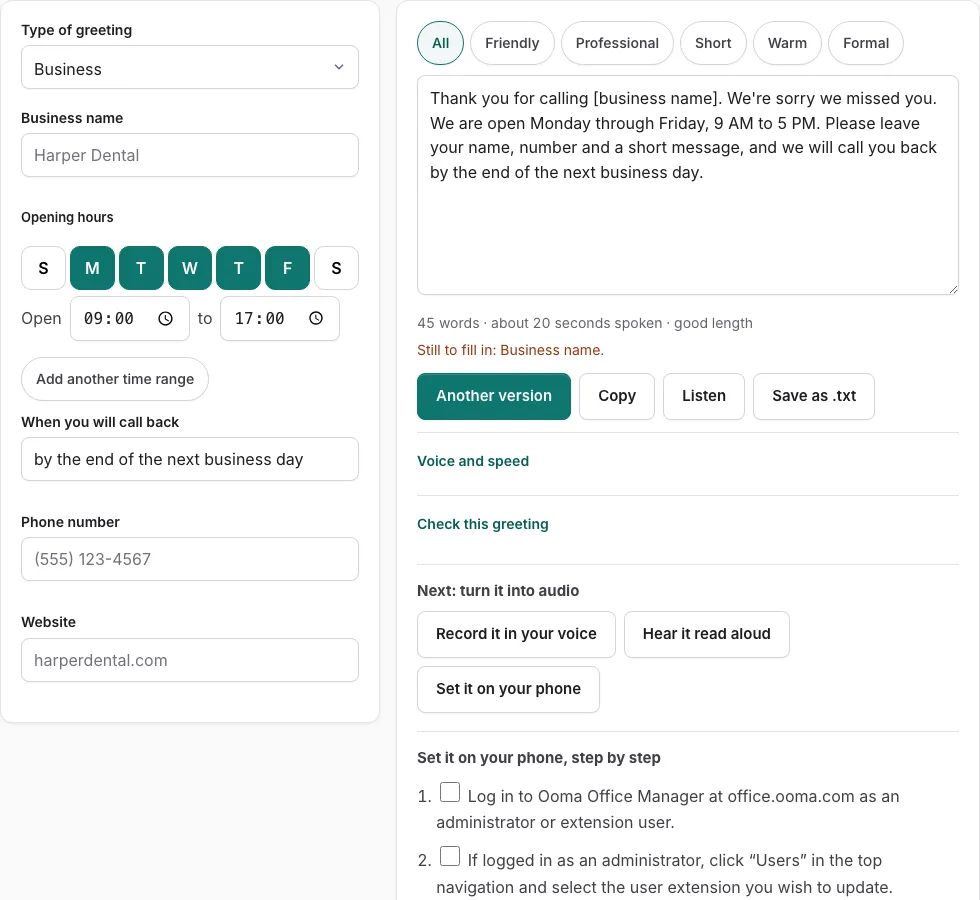
Steps to set your Ooma voicemail greeting
Follow these verified steps to configure your voicemail greeting in Ooma Office Manager or directly through your desk phone.
Before you start
- Obtain your Ooma Office user extension login credentials or administrative login at office.ooma.com.
- If uploading an audio file, export it as a 16-bit Mono WAV or MP3 file (under 5 MB).
Option 1: Uploading audio in Ooma Office Manager (Web Portal)
- Log in to Ooma Office Manager at office.ooma.com as an administrator or extension user.
- If logged in as an administrator, click “Users” in the top navigation and select the user extension you wish to update.
- Click on the “Voicemail” tab.
- Under “Voicemail Greeting”, select “Custom Greeting” (replacing the default Ooma system announcement).
- Click “Upload Audio” and select your prepared WAV or MP3 audio file from your hard drive.
- Wait for the upload confirmation checkmark to appear.
- Click “Save” at the bottom of the page to activate your new custom greeting.
Option 2: Recording directly from an Ooma IP desk phone
- Lift the handset on your Ooma IP phone and press the “Voicemail” button, or dial your own extension number.
- Enter your voicemail PIN followed by the # key when prompted.
- Press 2 to enter the mailbox configuration settings.
- Press 1 to change your personal greeting.
- Speak your script clearly into the handset microphone after the tone, and press # when finished.
- Press 1 to accept and activate the greeting, or press 2 to review the playback and re-record.
Managing Ooma Virtual Receptionist versus User Voicemail
Ooma Office separates company-wide call greeting management from individual extension voicemail boxes. Knowing where to make changes in Ooma Office Manager saves administrative time and avoids call routing errors.
The Virtual Receptionist greets callers when they dial your primary business telephone number, providing an IVR menu to route calls to ring groups or individual departments.
| Feature Comparison | User Extension Voicemail | Virtual Receptionist Greeting |
|---|---|---|
| Management location | Users > User Profile > Voicemail | Settings > System > Virtual Receptionist |
| Administrative access | Extension user or admin | Account administrator only |
| Intended function | Records voice messages for one person | Routes callers to departments or extensions |
| After-hours support | Available via schedule override | Dedicated After Hours menu tab |
| Audio file format | WAV or MP3 under 5 MB | WAV or MP3 under 5 MB |
Tips for clear Ooma voicemail recording
To ensure your Ooma Office voicemail sounds crisp across landline, VoIP, and mobile callers:
- Keep your message between 15 and 25 seconds; callers appreciate concise greetings that promptly invite them to leave details.
- In business voicemail greetings, explicitly instruct callers to leave their account number, order number, or reason for calling so your team can prepare before returning the call.
- If recording through an Ooma desk phone, use the handset rather than the speakerphone to eliminate ambient room reverberation.
- Review the audio using an outside cellular call to confirm volume levels before going live to incoming clients.
Ooma Office ring group greetings
When multiple extensions belong to a Ring Group (such as Sales or Tech Support), administrators can assign a dedicated group greeting that plays before distributing calls simultaneously or sequentially to available staff members.
Testing Ooma extension greetings across mobile and desktop softphones
After uploading a custom greeting in Ooma Office Manager, place a test call from an outside smartphone line to confirm that the greeting plays identically whether calls ring your physical desk phone or the Ooma Office mobile application on iOS and Android devices.
Configuring extension voicemail notifications
Ensure that email notifications are active in Ooma Office Manager so team members receive audio file attachments and timestamp logs immediately when a customer leaves a voicemail on their extension.
Frequently asked questions
What audio format does Ooma Office Manager accept for greetings?
Ooma Office supports MP3 and uncompressed 16-bit Mono WAV audio files up to 5 MB in file size. Files recorded at 8 kHz or 16 kHz sampling rates provide optimal clarity on telephone lines.
Can employees change their own Ooma Office greetings without an administrator?
Yes. Extension users can log in to the End User Portal at office.ooma.com/user with their extension credentials to update their personal voicemail greeting.
How do I access Ooma Office voicemail remotely from a cell phone?
Call your Ooma direct phone number. When the voicemail greeting begins playing, press the * key, enter your voicemail PIN followed by the # key, and follow the voice menu prompts.
Where do Ooma Office voicemails get sent?
Voicemails are stored on your desk phone, accessible in the Ooma mobile app, and can be automatically forwarded to your email inbox as attached audio files with optional voice-to-text transcripts.
How do I set up after-hours call routing in Ooma Office?
In Settings > System > Virtual Receptionist, select the After Hours tab to configure special night greetings and voicemail forwarding rules for unattended hours.
Can I receive Ooma voicemails via SMS text message?
Yes. Ooma Office Pro subscribers can enable Voicemail to Text, which sends an SMS notification with the transcribed text of the caller message directly to your mobile phone.
Related tools
- Business Voicemail Greeting Generator: Commercial scripts
- Small Business Voicemail Greeting: Owner-run studios
- How to Set Voicemail Greeting on Nextiva: NextOS upload
- How to Set Voicemail Greeting on Grasshopper: Virtual PBX
- Record Voicemail Greeting Online: Free WAV recorder
- Voicemail Greeting WAV Converter: 8 kHz telephone audio