
How to Change Voicemail Greeting on Teams
Write the greeting first, then paste it into Teams' text-to-speech box or read it as a recording.
Free · runs in your browser · nothing is uploaded
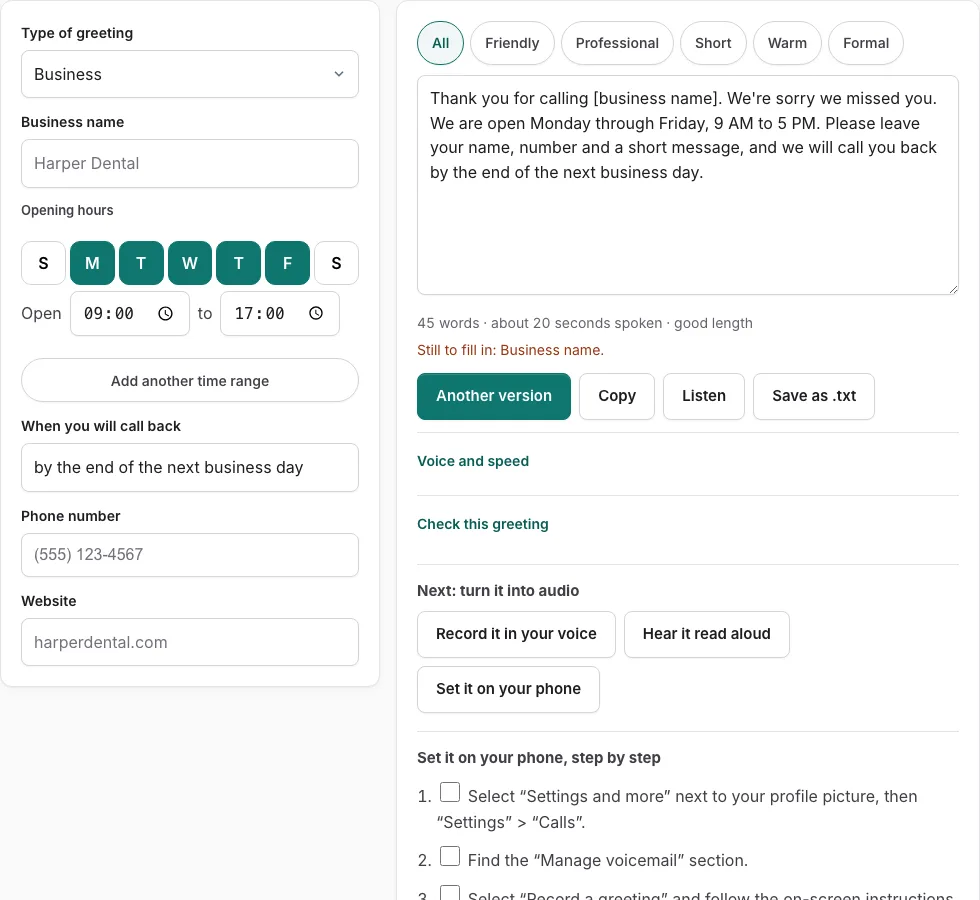
How to change voicemail greeting on Teams: open the call settings, then record a greeting, type one for text to speech, or set a separate out-of-office greeting. Use the greeting generator to write or choose a script, then follow the official steps below it to record your greeting or type one for text-to-speech. The steps cover the two routes Microsoft documents, plus a separate out-of-office greeting, so you can set one message for busy times and another for when you are away.
Most people only need to do this once, then update it when their hours or availability change. The generator gives you text you can paste straight into the text-to-speech box, so you do not have to write the script twice. Each official step has a check box, so you can tick off where you are as you go.
Steps to set your Microsoft Teams greeting
Write or pick your script in the tool above first, then follow the steps below from the official help page. Tick each step as you go; the steps are checked against the page named at the end.
Before you start
- Teams for work or school with calling/voicemail enabled (Microsoft refers Teams Free to a separate article).
Record a personal greeting
- Select “Settings and more” next to your profile picture, then “Settings” > “Calls”.
- Find the “Manage voicemail” section.
- Select “Record a greeting” and follow the on-screen instructions.
Text-to-speech greeting
- In “Manage voicemail” type your greeting in the text box. A recorded greeting overrides this.
Out-of-office greeting
- In “Calls” go to “Manage your out-of-office voicemail”.
- Choose when it plays and type your custom out-of-office greeting in the text box.
Limits stated by the source: The Microsoft Support page states no recording length, text length or file formats; it describes recording and text-to-speech only, no upload.
Good to know
- Microsoft Learn says an admin can set a text-to-speech greeting and its language per user in the Teams admin center; those text-to-speech greetings are used only when the user has not recorded a greeting.
- Mobile-vs-desktop steps are not distinguished on the fetched page.
Sources, checked 2026-10-27: Manage your call settings in Microsoft Teams - Microsoft Support; Change the default language for greetings and emails - Microsoft Learn
How do I set a voicemail greeting in Teams?
You set a voicemail greeting on the call settings page under Manage voicemail. There are two routes for your main greeting: record your own voice, or type text that Teams reads aloud with text-to-speech. The out-of-office greeting is a separate setting, so you can keep it different from your everyday message. The table below shows what each option is for.
| Option | What it is | Best when |
|---|---|---|
| Record a greeting | Your own voice, recorded in Teams. Overrides a text-to-speech greeting. | Callers should hear you personally |
| Type a text-to-speech greeting | A written script that Teams reads aloud | You want a quick, easy-to-edit greeting |
| Out-of-office greeting | A separate greeting for time away | Your availability differs from normal hours |
The page does not offer an audio file upload for personal greetings, so your two options are recording in Teams or typing text.
What should a voicemail greeting say?
A good voicemail greeting says who you are, why you cannot answer, what the caller should leave, and when you will reply. Use the greeting generator above to choose or write that script first, then follow the official steps below it. Each official step below the generator has a check box, so you can tick it off. Keeping these four parts in order helps callers understand the message in one listen.
The length line under the generator gives an estimate in seconds. Aim for a greeting that fits comfortably within that estimate, because callers hang up on long messages that repeat what they already know. Cut any sentence that does not help the caller leave a useful message.
When you record, use a quiet room and hold the phone about a hand’s width from your mouth. Speak at a steady pace, and re-record it if you stumble or hear background noise. Once the greeting is saved, call your own number from another phone and listen to exactly what a caller hears. If the greeting sounds unclear or too fast, record it again before you move on.
Frequently asked questions
Does a recorded greeting replace the text-to-speech greeting?
Yes, a recording overrides the text-to-speech greeting. Once you record your own voice, callers hear the recording instead of the typed script.
Can I upload an audio file as my Teams voicemail greeting?
The steps on this page do not describe uploading an audio file for personal greetings. Record your greeting in Teams, or type a text-to-speech greeting instead. Stick to the record and text-to-speech options described here.
How do I set an out of office voicemail greeting in Teams?
Open Manage voicemail on the call settings page and set the separate out-of-office greeting there. It is independent of your normal greeting, so you can change one without touching the other.
Do I need to write a script before I record?
Yes, the greeting generator above the steps asks you to choose or write the script first. Then follow the official steps below it, which cover recording a greeting or typing a text-to-speech one.
How do I keep track of the setup steps?
Each step has a check box, so you can tick it off as you finish it. Work through the list in order, and return to any unticked step if you stop partway.
How do I test my voicemail greeting?
Call your own number from a different phone after you save the greeting. Listen to it the way a caller would hear it, and re-record it if anything is hard to follow. If it runs long, shorten it so callers reach the point quickly.
When should I update my voicemail greeting?
Update it whenever your hours or availability change. An outdated greeting can send callers the wrong message about when you will reply. Check your out-of-office greeting at the same time, since it does not update your normal greeting.
Related tools
- How to Change Voicemail Greeting on iPhone: Use it when the greeting is ready and you need the steps for iPhone.
- How to Change Voicemail Greeting on Android: Use it when the greeting is ready and you need the steps for Android.
- How to Change Voicemail Greeting on Samsung: Use it when the greeting is ready and you need the steps for Samsung.
- How to Set Up Google Voicemail Greeting: Use it when the greeting is ready and you need the steps for Google Voice.
- How to Change Voicemail Greeting on Verizon: Use it when the greeting is ready and you need the steps for Verizon.
- How to Change Voicemail Greeting on AT&T: Use it when the greeting is ready and you need the steps for AT&T.
- Voicemail Greeting Generator: Use it for greeting scripts for 17 situations.
- How to Set a Voicemail Greeting: Use it to browse iPhone, Android, Samsung, carriers and office phone systems.