
How to Set Voicemail Greeting on Grasshopper
Write your greeting with our interactive generator, then follow Grasshopper portal steps to update your main greeting or extension voicemail.
Free · runs in your browser · nothing is uploaded
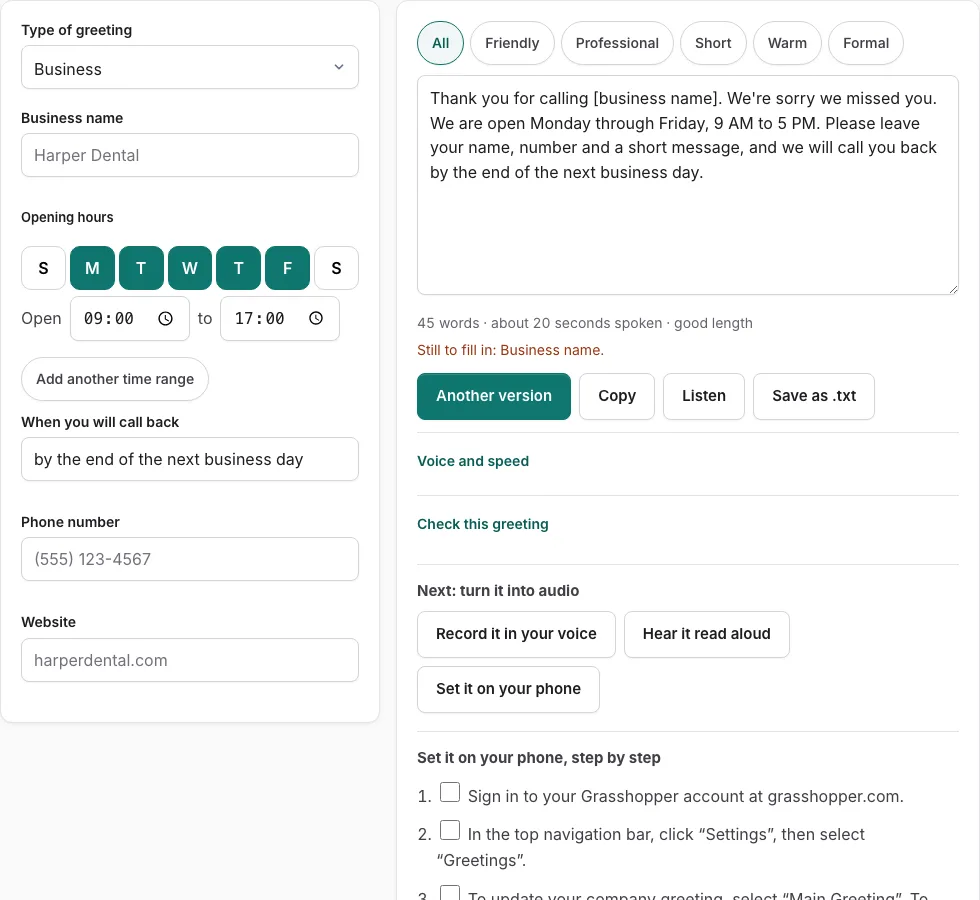
Steps to set your Grasshopper voicemail greeting
Follow these official steps to configure your Grasshopper phone greetings in the online management portal.
Before you start
- Log in to your Grasshopper portal at grasshopper.com with administrative credentials.
- Decide whether you are updating the primary company Main Greeting or an individual user extension voicemail.
Option 1: Uploading an audio file through the Grasshopper portal
- Sign in to your Grasshopper account at grasshopper.com.
- In the top navigation bar, click “Settings”, then select “Greetings”.
- To update your company greeting, select “Main Greeting”. To update your personal voicemail, select “Extensions” and click on your extension number.
- Locate the greeting you wish to update and click “Change Greeting” or “Edit”.
- Choose “Upload an audio file”.
- Click “Browse” and select your prepared WAV or MP3 audio file (maximum file size 20 MB).
- Wait for the upload progress bar to complete.
- Click “Save” to apply the new greeting immediately.
Option 2: Recording using Grasshopper’s “Call Me” feature
- Inside Settings > Greetings, click “Change Greeting” next to your chosen greeting.
- Select the “Record by phone” option.
- Enter your mobile or landline phone number and click “Call Me”.
- Answer the incoming call from Grasshopper on your phone.
- Follow the voice prompts: press 1 to begin recording after the tone, speak your script, and press # when finished.
- Review the recording over the phone, confirm saving, and the audio will automatically synchronize to your Grasshopper portal.
Grasshopper greeting architecture: Main Greeting versus Extension Voicemail
Grasshopper operates as a virtual PBX phone system. When a caller dials your business number, they interact with distinct greeting stages depending on how you configure your call tree.
Failing to separate these two greeting types is the most common mistake new Grasshopper users make. Putting an extension voicemail on your main company number will confuse callers attempting to reach other extensions.
| Greeting Type | When It Plays | Typical Script Structure |
|---|---|---|
| Main Greeting | Immediately when business number rings | “Thank you for calling [Company]. For sales press 1, for support press 2…” |
| Extension Voicemail | After caller selects an extension and nobody answers | “You have reached [Name] at extension [X]. Please leave your name and number…” |
| After Hours Greeting | When business number rings outside scheduled hours | “Thank you for calling [Company]. Our offices are currently closed…” |
| Name Announcement | Plays during directory lookup and transfer announcements | Spoken recording of your full name only |
Best practices for Grasshopper audio recordings
Because Grasshopper forwards calls to external mobile carriers and landlines, call clarity is subject to multi-carrier transcoding. To maximize intelligibility:
- Keep Main Greetings under 20 seconds; present menu options in logical sequence with numbers placed after the department name (e.g., “For customer service, press 2”).
- State the website address or alternative digital contact channels early in after-hours greetings so urgent customers have immediate self-service options.
- When using the “Record by phone” feature, use a landline or sit near a window with full cellular reception to prevent carrier packet loss during upload.
- Speak in an open, friendly voice that reflects your brand’s commitment to customer service and prompt communication.
Forwarding voicemails to multiple team members
Grasshopper extensions can be configured to notify multiple email addresses whenever a voicemail is recorded. This allows distributed customer support teams to triage client messages quickly without sharing administrative portal logins.
Managing extension greeting overrides during staff transitions
When reassigning a Grasshopper extension to a new employee or contractor, administrators should reset both the extension voicemail greeting and the recorded name announcement under Extensions settings to maintain accurate caller directory indexing.
Testing greeting playback from multiple carriers
After publishing a new greeting in Grasshopper, place test calls from different mobile networks to confirm that caller ID forwarding and audio levels perform consistently across various cellular towers.
Frequently asked questions
What file formats can I upload to Grasshopper?
Grasshopper supports MP3 and WAV files up to 20 MB in size. For the clearest telephone audio, standard 16-bit Mono WAV files are strongly recommended for all business greetings.
Can I set different Grasshopper greetings for business hours and after hours?
Yes. In Settings > Business Hours, enable your weekly operating schedule. You can then assign a Daytime Main Greeting and a separate After Hours Greeting that activates automatically.
How long does Grasshopper store recorded voicemails?
Grasshopper retains voicemail messages indefinitely in your online account as long as your subscription remains active. Messages can also be forwarded automatically to email as audio attachments.
How do I change the extension greeting on the Grasshopper mobile app?
Open the Grasshopper mobile app, tap the gear icon for Settings, select “Greetings”, tap your extension, and record a new greeting using your smartphone microphone.
Can professional voice actors record my Grasshopper greeting?
Grasshopper provides a paid Voice Studio service for custom actor recordings. Alternatively, write your script here and export clean audio using our free browser-based tools.
How do I delete old voicemail messages in Grasshopper?
Log in to your Grasshopper portal, navigate to the Messages tab, select the messages you wish to remove, and click Delete to free up mailbox storage.
Related tools
- Business Voicemail Greeting Generator: Commercial scripts
- Small Business Voicemail Greeting: Owner-run studios
- After Hours Voicemail Greeting: Spoken business hours
- How to Set Voicemail Greeting on Nextiva: NextOS upload
- Voicemail Greeting Script Builder: Block-by-block text
- Record Voicemail Greeting Online: Free WAV recorder