
How to Set Voicemail Greeting on Dialpad
Craft your voicemail script, check speech duration, and follow official Dialpad steps to upload or record your business greeting.
Free · runs in your browser · nothing is uploaded
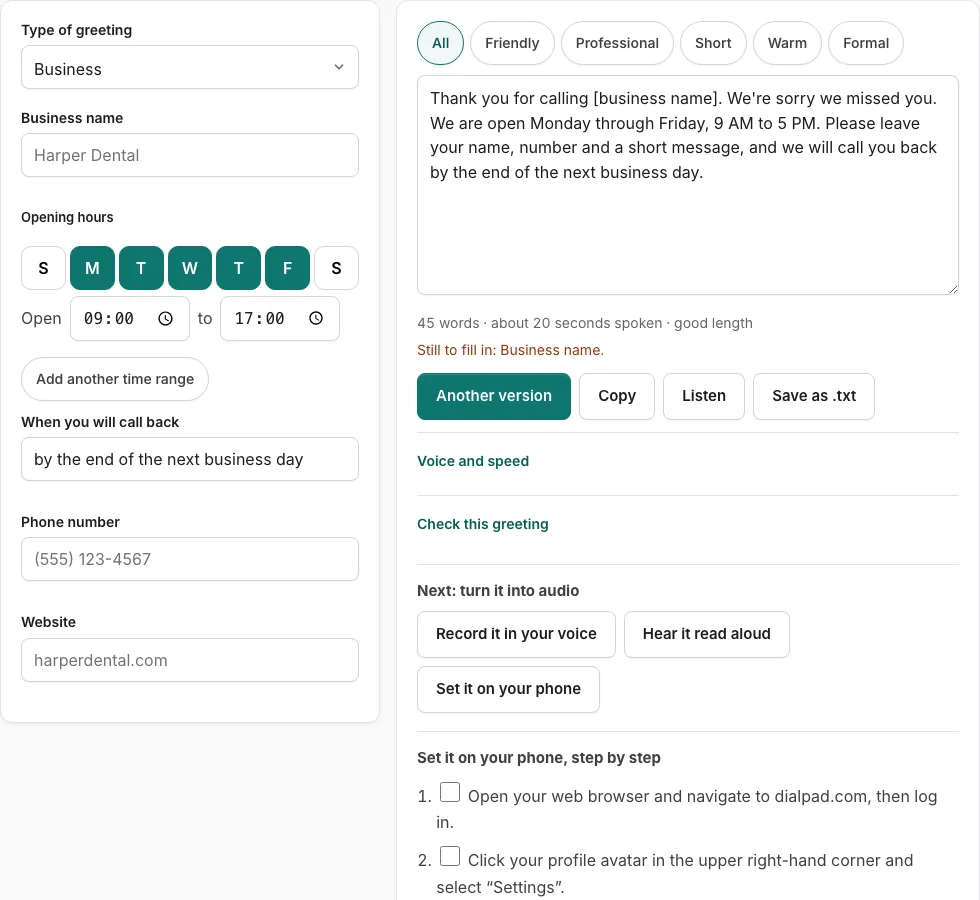
Steps to set your Dialpad voicemail greeting
Follow these official steps to configure your Dialpad voicemail greeting on the web portal or desktop client.
Before you start
- Log in to your Dialpad account at dialpad.com with your work email or Google/Microsoft SSO.
- Test your microphone if you plan to record directly in the Dialpad application.
Option 1: Uploading an audio file via Dialpad Web Settings
- Open your web browser and navigate to dialpad.com, then log in.
- Click your profile avatar in the upper right-hand corner and select “Settings”.
- In the left navigation menu under “Your Settings”, click “Call Routing”.
- Scroll down to the “Voicemail Greeting” section.
- Click “Change Greeting”.
- Select “Upload audio file” and pick your pre-recorded WAV or MP3 file from your computer (file size under 10 MB).
- Listen to the uploaded preview to confirm volume and clarity.
- Click “Save Changes” to set this greeting as your active voice message.
Option 2: Recording directly in the Dialpad desktop app
- Open the Dialpad app on your macOS or Windows computer.
- Click your profile picture in the top left and select “Preferences” or “Settings”.
- Navigate to “Call Routing” > “Voicemail Greeting”.
- Click “Record a greeting”.
- Speak your script clearly into your connected microphone.
- Click “Stop” when finished.
- Click “Play” to listen to the recording, then click “Apply” to activate it.
Personal versus Department greetings in Dialpad
Dialpad organizes voice communications into two distinct administrative layers: individual user lines and shared department or call center lines. Understanding which greeting you are modifying prevents accidental misconfigurations.
Individual extensions represent your direct inward dialing (DID) number. Department lines distribute incoming calls to multiple agents according to round-robin, longest-idle, or simultaneous ringing algorithms.
| Feature Comparison | Individual User Voicemail | Department / Call Center Voicemail |
|---|---|---|
| Access level | Individual employee login | Department admin or company admin |
| Settings location | Your Settings > Call Routing | Admin Settings > Departments > Call Routing |
| Dialpad Ai transcript | Sent to individual inbox | Shared in department inbox and call log |
| Business hours split | Available via working hours | Separate open, closed, and holiday greetings |
| Max recording limit | 120 seconds | 120 seconds |
How Dialpad Ai interacts with your voicemail greeting
Dialpad includes native artificial intelligence that automatically transcribes incoming voicemail messages into readable text and generates email summaries. To help Dialpad Ai produce accurate transcriptions:
- Request specific caller details in your greeting: instruct callers to spell uncommon names, recite account reference numbers, and repeat their telephone number.
- Avoid noisy background sound effects or loud ambient music during your greeting, as sound bleed can interfere with the voice activity detector (VAD).
- Keep greeting length under 25 seconds; callers who listen to long introductory monologues frequently speak too quickly or hang up without leaving actionable voicemail details.
- Conclude with clear turnaround expectations so customers know when they will receive a response. Setting realistic timelines reduces repetitive inbound callbacks.
Managing multiple office location greetings
Organizations operating multiple branches in Dialpad can assign regional greetings per department. This ensures callers dialing your West Coast office hear local operating hours and timezone expectations while East Coast callers receive prompt morning assistance.
Ensuring smooth audio playback across international connections
When configuring Dialpad greetings for multinational accounts, verify that your audio file contains clean speech dynamics. Dialpad automatically normalizes volume levels across SIP trunks, but starting your recording with two seconds of silence prevents initial speech clipping on high-latency overseas routes.
Automatic transcription accuracy verification
To ensure Dialpad Ai accurately transcribes names and technical terms in incoming voicemails, verify that your greeting clearly asks callers to enunciate difficult words and specify their department ticket number.
Frequently asked questions
What audio file formats does Dialpad accept for voicemail greetings?
Dialpad supports standard MP3 and WAV audio files up to 10 MB in file size. For best audio fidelity and instant playback loading, uncompressed 16-bit Mono WAV files are strongly recommended.
Can I set different Dialpad greetings for after hours?
Yes. In your Dialpad Call Routing settings, enable Working Hours. You can then specify one custom greeting for business hours and a separate closed greeting for after-hours calls.
Where do Dialpad voicemail messages go once recorded?
Voicemails are delivered instantly to your Dialpad application inbox, your registered email address as an MP3 attachment with AI text transcript, and optional SMS notification.
How do I revert to the default Dialpad voicemail greeting?
In Settings > Call Routing > Voicemail Greeting, click “Change Greeting” and choose “Dialpad Default”. Click Save to restore standard automated operator playback.
Can Dialpad send voicemail notifications to Slack or Microsoft Teams?
Yes. Dialpad integrations allow automated voicemail audio links and AI transcripts to post directly into designated Slack or Microsoft Teams channels for fast team response.
Does Dialpad support custom music in voicemail greetings?
Yes. While speaking your message, you can mix subtle background music. However, keeping the audio clean without music improves Dialpad Ai transcription accuracy.
Related tools
- How to Set Voicemail Greeting on Zoom Phone: Audio library
- How to Set Voicemail Greeting on Microsoft Teams: Cloud setup
- Business Voicemail Greeting Generator: Commercial scripts
- Voicemail Greeting Text to Speech: Browser voice tester
- Record Voicemail Greeting Online: Studio WAV recorder
- What to Say in a Voicemail Greeting: Content checklist