
How to Set Up Google Voicemail Greeting
Write the greeting first, then follow Google's steps to record it in the Voice app or on the web.
Free · runs in your browser · nothing is uploaded
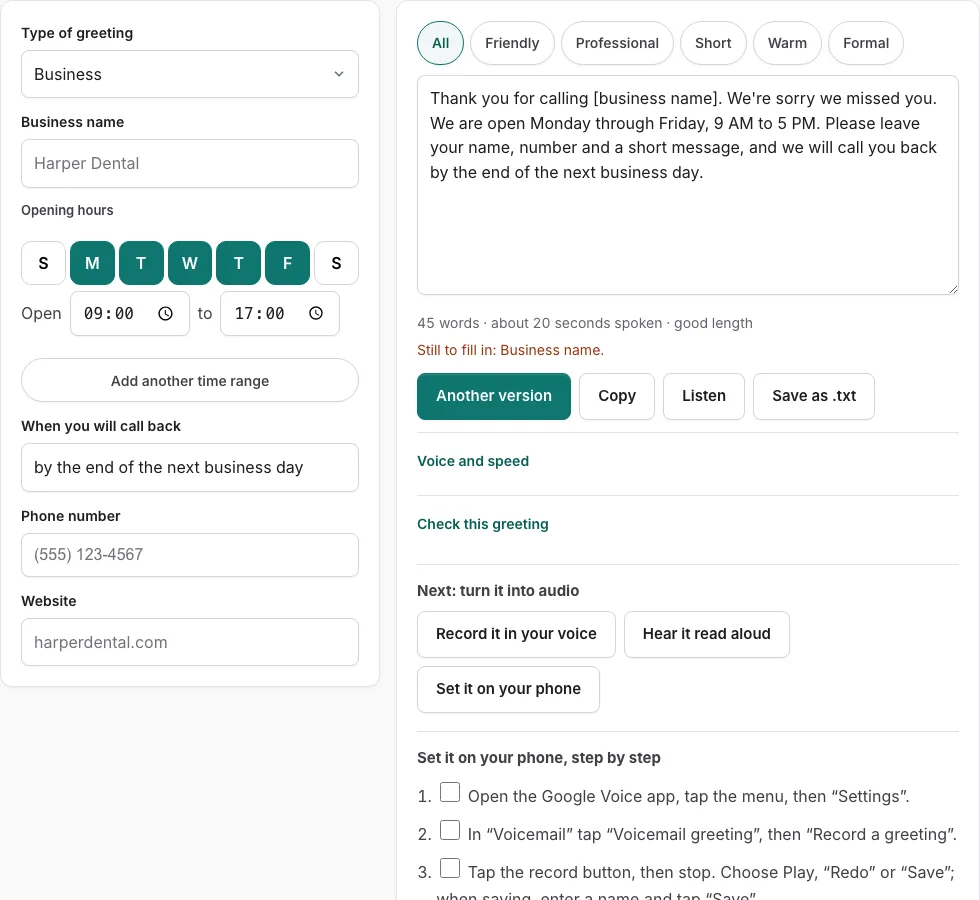
Steps to set your Google Voice greeting
Write your script in the tool above first, then follow the official steps below.
Before you start
- A Google Voice number.
- On a computer, allow the browser to use your microphone.
- Internet Explorer cannot record; callers then hear the default greeting.
Record a greeting - Android app
- Open the Google Voice app, tap the menu, then “Settings”.
- In “Voicemail” tap “Voicemail greeting”, then “Record a greeting”.
- Tap the record button, then stop. Choose Play, “Redo” or “Save”; when saving, enter a name and tap “Save”.
Record a greeting - iPhone/iPad app
- Open the Google Voice app, tap the menu icon top left, then “Settings”.
- In “Voicemail” tap “Voicemail greeting”, then “Record a greeting”.
- Tap record, then stop. Choose Play, “Redo” or “Save”; name it and tap “Save”.
Record a greeting - computer
- Go to voice.google.com and click Settings (gear).
- Click “Voicemail”.
- In “Active greeting” click “Record a greeting”, record, stop, then Play, “Redo” or “Save” (name it, “Save”).
Switch to a saved greeting or the default
- Computer: in “Active greeting” click “Manage all greetings”. App: Settings > “Voicemail greeting”.
- Next to the greeting you want click/tap “More”, then “Set as active”.
Limits stated by the source: Up to 10 greetings. Up to 3 minutes (1 minute when recording in Safari). The default greeting plays if none is recorded. The help pages do not mention uploading an audio file or per-caller greetings.
Sources, checked 2026-10-27: Google Voice Help (Android); Google Voice Help (Computer); Google Voice Help (iPhone & iPad)
How do I change my voicemail greeting in Google Voice?
Write or choose your script in the generator first, then record it with Google’s official steps for your device. Working in that order means you record once, not several times while you search for the right words.
Start by picking or writing a script in the generator above the steps, then read it aloud and check the length line. Next, follow Google’s steps for Android, desktop or iOS, and tick each check box as you go. The page does not mention uploading a file, so read your script aloud. When the recording is saved, call your own number from another phone to hear what callers hear. Listen for pace and clarity, and re-record if anything sounds rushed. You can keep up to ten greetings, so one script can sit alongside others you may need later.
What should a Google Voice voicemail greeting say?
A good greeting says who you are, why you cannot answer, what the caller should leave and when you will reply. Keep those four parts in that order so callers know what to do without listening twice.
For example: “Hi, this is Maya. I am away from my phone right now. Please leave your name, your number and a short message after the tone, and I will call you back later today.” Each part is short, so the whole greeting stays easy to follow.
| Item | Limit |
|---|---|
| Recording length | Three minutes |
| Recording length in Safari | One minute |
| Saved greetings | Up to ten |
If your script runs past the limit, cut words rather than speed up, since a rushed read sounds worse. Keep the greeting short, because the length line shows estimated seconds. Choose words you can say naturally, and read the script aloud twice before recording to catch awkward phrases. Record in a quiet room with the phone about a hand’s width from your mouth, since that gives the clearest sound. Update the greeting whenever your hours or availability change, so callers never hear outdated information.
Frequently asked questions
Can I set up a voicemail greeting on Google Voice?
Yes. Google’s help page lists steps for setting a greeting on Android, desktop and iOS. Use the greeting generator above to prepare your words, then follow the steps for your device.
How do I set my voicemail greeting?
Choose or write your script in the greeting generator, check the length line, then follow Google’s official steps for your device. Tick each check box as you complete it.
How do I change my voicemail greeting in Google Voice?
Record a new greeting with the same official steps you used for the first one. Google lets you keep up to ten greetings, so you can save a different version for busy days or after hours.
Does Google Voice have a voicemail limit?
Google’s help page states a recording limit of three minutes for a greeting, and one minute in Safari. Keep your script short enough to finish well within that limit.
How do I test my voicemail greeting?
Call your own number from a different phone after you save the recording. Listen to the greeting as a caller would, and re-record it if the volume is low or a word is unclear.
Can I use a file for my greeting?
Google’s help page does not mention uploading a file, so read your script aloud and record it on your phone. The greeting generator only helps you prepare the words.
Related tools
- How to Change Voicemail Greeting on iPhone: Use it when the greeting is ready and you need the steps for iPhone.
- How to Change Voicemail Greeting on Android: Use it when the greeting is ready and you need the steps for Android.
- How to Change Voicemail Greeting on Samsung: Use it when the greeting is ready and you need the steps for Samsung.
- How to Change Voicemail Greeting on Verizon: Use it when the greeting is ready and you need the steps for Verizon.
- How to Change Voicemail Greeting on AT&T: Use it when the greeting is ready and you need the steps for AT&T.
- How to Change Voicemail Greeting on Teams: Use it when the greeting is ready and you need the steps for Microsoft Teams.
- Voicemail Greeting Generator: Use it for greeting scripts for 17 situations.
- How to Set a Voicemail Greeting: Use it to browse iPhone, Android, Samsung, carriers and office phone systems.