
How to Change Voicemail Greeting on Verizon
Write the greeting first, then follow Verizon's steps.
Free · runs in your browser · nothing is uploaded
How to change voicemail greeting on Verizon: use the Visual Voicemail app, or dial *86 and follow the prompts, after writing the script here. Verizon’s pages do not state the exact key for the greeting, so the steps below mark that gap.
The greeting generator above helps you write the words before you record. Choose a script or write your own, then follow the official Verizon steps shown below the tool. Each step has a check box, so you can tick off what you have finished and return later without losing your place.
Verizon states no greeting length limit on the pages we used. Use this page when you want clear wording ready before you record.
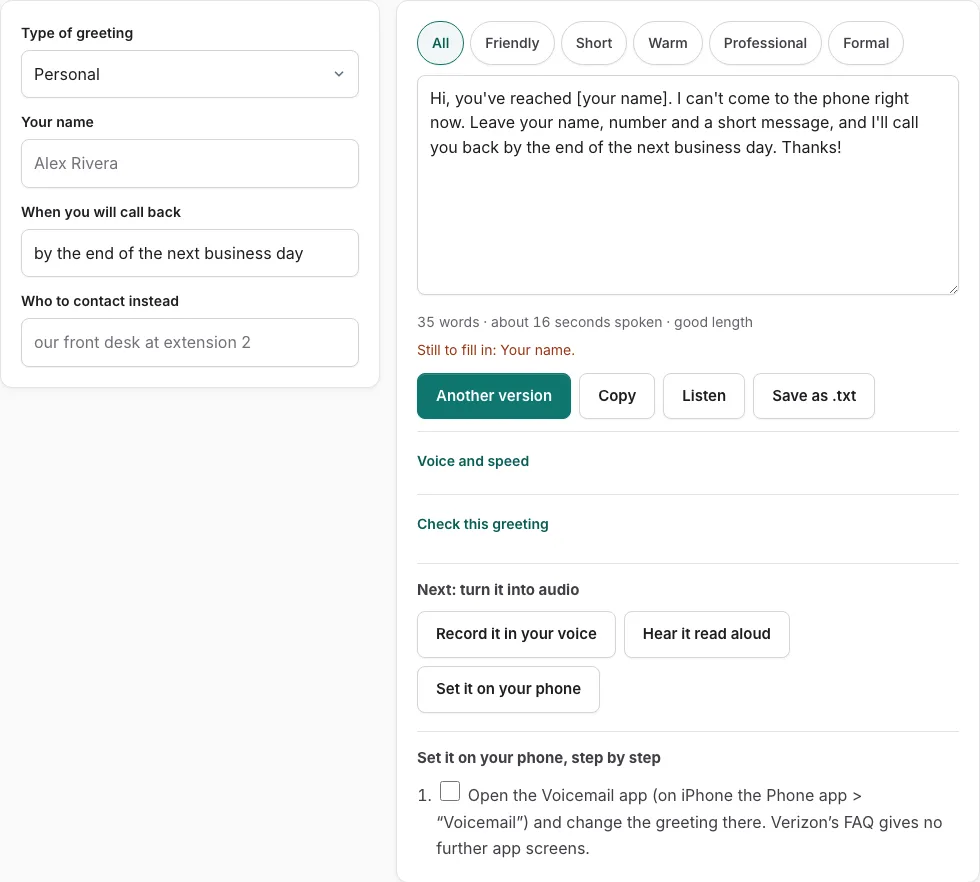
Steps to set your Verizon Wireless greeting
Pick your script in the tool above, then follow these steps. Tick each one as you go.
Before you start
- Voicemail set up on the line (iPhone: Phone > Voicemail > “Set Up Now”).
- Voicemail password, same for Visual and Basic voicemail; dial *611 if you forgot it.
- Android Visual Voicemail needs mobile data; Wi-Fi alone is not enough.
Visual Voicemail app
- Open the Voicemail app (on iPhone the Phone app > “Voicemail”) and change the greeting there. Verizon’s FAQ gives no further app screens.
From your Verizon phone by keypad
- Dial *86 and follow the prompts (Verizon offers an *86 menu-tree PDF).
- Follow the prompts, entering your password when asked. Verizon’s steps for calling in from another phone name Personal Options (menu 4); listen for that option.
From another phone
- Call your own mobile number.
- Press # as soon as the greeting starts, enter your password.
- Press 4 for “Personal Options” and follow the prompts.
First-time Basic Voicemail setup on Android (records a greeting)
- Dial *86 or call your 10-digit number from another phone.
- Press 1 for English, then #; enter a 4- to 7-digit password, then #.
- Say your name when prompted, #, then # again to confirm.
- Say your greeting when prompted, press #, then # again to confirm.
Limits: Verizon pages state no greeting length limit.
Good to know
- Switching to Basic Voicemail or cancelling Visual Voicemail may lose custom greetings.
Sources, checked 2026-10-27: Visual Voicemail FAQs; Basic Voicemail on Android; Check voicemail
How do I change my Verizon voicemail greeting?
You can change your Verizon voicemail greeting in the Visual Voicemail app, or by dialing *86 and following the prompts. Verizon’s steps for calling in from another phone name Personal Options (menu 4), so listen for that option. Verizon documents both routes, so choose whichever your phone supports. The key for the greeting inside menu 4 is not stated on the pages we could read, so check the prompts as you go.
| Route | How to start | Where the greeting is | What to know |
|---|---|---|---|
| Visual Voicemail app | Open the app on your phone | Change the greeting in the app | Verizon documents this route |
| Dial *86 | Call *86 from your Verizon phone | Follow the prompts; Personal Options is menu 4 in Verizon’s call-in steps | The exact greeting key is not stated by Verizon |
Write the script first, using the greeting generator above the steps, then follow the official steps below it. Each step has a check box, so you can tick it off as you go.
What should a voicemail greeting say?
A useful greeting names who the caller has reached, explains why you cannot answer, tells the caller what to leave, and says when you will reply. Those four parts are what the greeting generator helps you put in order.
Keep the wording plain. Callers listen for the name and the instruction, so leave out anything that does not help them act. Verizon states no greeting length limit on the pages used for this guide. The length line under the tool estimates the recording in seconds, which shows how long callers will listen before they hang up.
Record in a quiet room with the phone about a hand’s width from your mouth. Then test the greeting by calling your own number from another phone and listening to what callers hear. If the recording sounds rushed or cuts off, record it again before you rely on it. Update the greeting whenever your hours or availability change.
Frequently asked questions
Why can’t I change my voicemail greeting?
If dialing *86 does not let you record, try the Visual Voicemail app, since Verizon documents both routes. Make sure you enter your voicemail password correctly when prompted. Personal Options is menu 4 in Verizon’s call-in steps, and the key for the greeting inside that menu is not stated on the pages we could read.
What if I forgot my Verizon voicemail password?
Contact Verizon customer service for help resetting it. You need to get past the password prompt before you can reach the greeting settings. Store the new password somewhere safe so you can reach the greeting settings again later.
Is there a length limit for a Verizon voicemail greeting?
Verizon states no greeting length limit on the pages used for this guide. Keeping it brief still helps callers hear the key details first. Shorter greetings are easier for callers to follow, so a few clear sentences work well.
How do I test my new voicemail greeting?
Call your own number from another phone and listen to exactly what callers hear, from the first word to the end of the greeting. Re-record if anything sounds unclear or too quiet, then call again to check.
When should I update my voicemail greeting?
Update it whenever your hours or availability change, so callers hear accurate information. For a one-day change, record a short note for that day and reset it afterward.
Where do I find the greeting generator?
Above the steps on this page is a greeting generator. Choose or write your script first, then follow the official steps below it. Use the generator to draft text before you record anything.
How do I keep track of the steps?
Each step has a check box, so you can tick it off as you go. Finish the steps before you run the test call.
Related tools
- How to Change Voicemail Greeting on iPhone: Use it when the greeting is ready and you need the steps for iPhone.
- How to Change Voicemail Greeting on Android: Use it when the greeting is ready and you need the steps for Android.
- How to Change Voicemail Greeting on Samsung: Use it when the greeting is ready and you need the steps for Samsung.
- How to Set Up Google Voicemail Greeting: Use it when the greeting is ready and you need the steps for Google Voice.
- How to Change Voicemail Greeting on AT&T: Use it when the greeting is ready and you need the steps for AT&T.
- How to Change Voicemail Greeting on Teams: Use it when the greeting is ready and you need the steps for Microsoft Teams.
- Voicemail Greeting Generator: Use it for greeting scripts for 17 situations.
- How to Set a Voicemail Greeting: Use it to browse iPhone, Android, Samsung, carriers and office phone systems.