
How to Change Voicemail Greeting on Samsung
Write the greeting first, then follow Samsung's steps for the Phone app voicemail setup.
Free · runs in your browser · nothing is uploaded
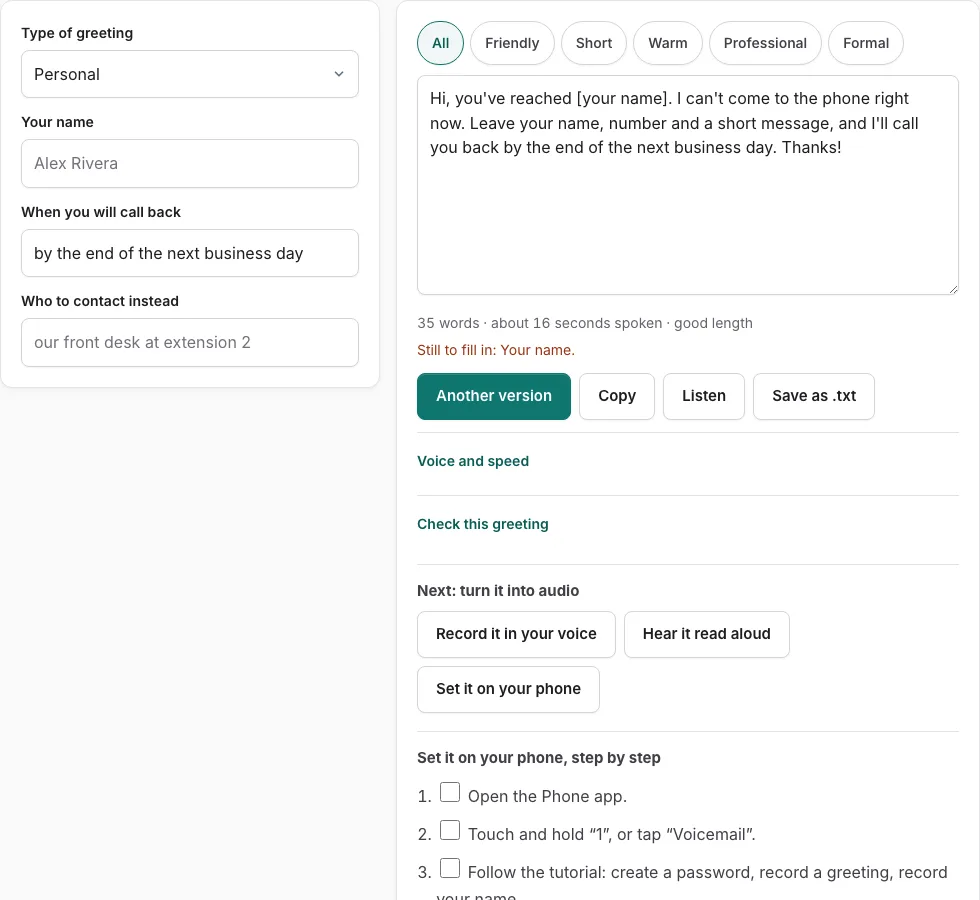
Steps to set your Samsung Galaxy greeting
Write or pick your script in the tool above first, then follow the steps below from the official help page. Tick each step as you go; the steps are checked against the page named at the end.
Before you start
- A carrier voicemail service; Samsung says options and the Phone app layout vary by carrier.
First-time voicemail setup (includes recording a greeting)
- Open the Phone app.
- Touch and hold “1”, or tap “Voicemail”.
- Follow the tutorial: create a password, record a greeting, record your name.
Visual Voicemail setup
- In the Phone app tap the Visual Voicemail icon (envelope) and read the information.
- Tap “Continue” and allow the permissions.
- Tap “Continue” after the welcome message and follow the prompts.
Limits stated by the source: Samsung pages state no greeting length or file format.
Good to know
- No official Samsung page was found describing how to change an existing greeting; use the carrier slug (verizon, att, t-mobile) for that.
- “Direct voicemail” is a separate Samsung feature (Galaxy phones with Android 16 and One UI 8.5 or higher). Samsung’s page does not say whether you can record a custom greeting for it.
Sources, checked 2026-10-27: Get ready to start using your new Galaxy phone or tablet - Samsung US; Adjust call settings on your Galaxy phone - Samsung US; How to use Samsung Direct voicemail on Galaxy devices - Samsung US
What should a Samsung voicemail greeting say?
A voicemail greeting should say who you are, why you can’t answer, what the caller should leave, and when you will reply. Keep those four parts in that order so a caller knows right away that they have reached the right person.
The greeting generator is built around these four parts, so start by filling in each one. Your name or number comes first. The reason can be short, such as being in a meeting or driving. Next, ask the caller for their name, a number, and a short message. Finish with the time you expect to call back, and check it against your actual schedule before you record.
Recording quality matters as much as wording. Record in a quiet room, and hold the phone about a hand’s width from your mouth. Update the greeting whenever your hours or availability change, because an old message can send callers the wrong information.
Once you have the script, follow the official steps below the generator. To start, open the Phone app and touch and hold 1, or tap Voicemail. The tutorial then asks you to create a password, record a greeting, and record your name. Each step has a check box, so tick it off as you finish it. Samsung says options and the Phone app layout vary by carrier, so your screens may differ from the steps.
How long should a voicemail greeting be?
Keep the greeting short enough that callers reach the beep without waiting. Use the length line under the tool as your guide, since it estimates the length in seconds. Use that estimate to decide what to cut, not as a rule about how long every greeting must be.
Test the greeting once it’s recorded. Call your own number from another phone to hear what callers hear. Listen for background noise, clipped words, and whether the instructions are clear. If anything sounds off, record the greeting again.
Frequently asked questions
How do I change my voicemail greeting on a Samsung phone?
Open the Phone app, then touch and hold 1 or tap Voicemail, and follow the tutorial. Samsung says the layout and options vary by carrier, so if your screens differ, use your carrier’s steps for changing the greeting.
How do I set up a custom voicemail greeting on my Samsung phone?
Samsung’s page doesn’t say whether direct voicemail supports a custom greeting. Record your own greeting through the voicemail setup steps for your phone and carrier, and write the script with the greeting generator first.
What happens the first time I open Voicemail on a new Galaxy phone?
The first-time tutorial asks you to create a password, record your greeting, and record your name. Have your script ready before you start so you can record it in one pass.
What is direct voicemail on a Samsung phone?
Direct voicemail is a separate Samsung feature on newer One UI versions. Samsung’s page doesn’t say whether it supports a custom greeting, so check your phone’s voicemail settings to see what your version offers.
Why do my Samsung voicemail screens look different from Samsung’s steps?
Samsung says the options and the Phone app layout vary by carrier. The same tutorial may appear with different labels or menu paths, so follow the wording on your screen where it differs.
How do I check my voicemail greeting after recording it?
Call your own number from another phone after you finish recording. This lets you hear the greeting the way a caller will, so you can fix any problems right away.
Related tools
- How to Change Voicemail Greeting on iPhone: Use it when the greeting is ready and you need the steps for iPhone.
- How to Change Voicemail Greeting on Android: Use it when the greeting is ready and you need the steps for Android.
- How to Set Up Google Voicemail Greeting: Use it when the greeting is ready and you need the steps for Google Voice.
- How to Change Voicemail Greeting on Verizon: Use it when the greeting is ready and you need the steps for Verizon.
- How to Change Voicemail Greeting on AT&T: Use it when the greeting is ready and you need the steps for AT&T.
- How to Change Voicemail Greeting on Teams: Use it when the greeting is ready and you need the steps for Microsoft Teams.
- Voicemail Greeting Generator: Use it for greeting scripts for 17 situations.
- How to Set a Voicemail Greeting: Use it to browse iPhone, Android, Samsung, carriers and office phone systems.