
How to Change Voicemail Greeting on iPhone
Write the greeting first, then follow Apple's steps to record it on your iPhone.
Free · runs in your browser · nothing is uploaded
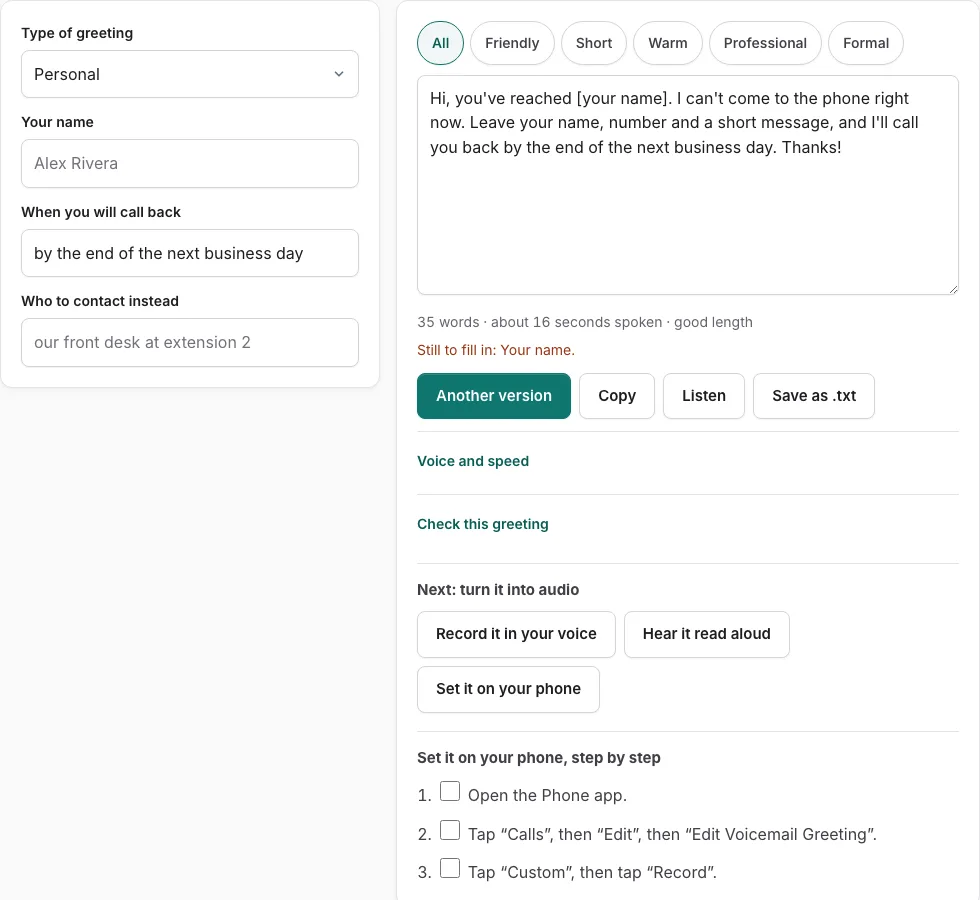
Steps to set your iPhone greeting
Write or pick your script in the tool above first, then follow the steps below from the official help page. Tick each step as you go; each step has a check box so you can mark it off. The steps are checked against the page named at the end.
Since the Apple page describes recording on the iPhone itself, read your script aloud into the phone rather than loading an audio file.
Before you start
- Voicemail set up with your carrier.
- Custom recording is not supported by all carriers or in all countries and regions (Apple).
Unified Phone app layout
- Open the Phone app.
- Tap “Calls”, then “Edit”, then “Edit Voicemail Greeting”.
- Tap “Custom”, then tap “Record”.
Classic Phone app layout
- Open the Phone app.
- Tap “Voicemail”, then tap “Greeting”.
- Tap “Custom”, then tap “Record”.
Limits stated by the source: The Apple page states no length limit and no file-import option; it only mentions “Record”. It does not describe stop/play/save steps.
Good to know
- Which steps apply depends on whether the Phone app uses the Unified or the Classic layout.
- If a step does not match your screen, check which layout your Phone app shows.
- Apple notes that custom greeting recording is not supported by all carriers or regions.
- Record the greeting on the iPhone itself, not from a file on this site.
Sources, checked 2026-10-27: Change your voicemail greeting and settings on iPhone - Apple Support
How do I change my voicemail greeting on iPhone?
You change the greeting inside the Phone app by recording it on the iPhone, not by loading a file. Apple documents two layouts, and both lead to a Record option. If you cannot find that option, Apple notes that not all carriers or countries support custom greetings.
| Phone app layout | Where to go | Option to choose |
|---|---|---|
| Unified | Calls, then Edit | Edit Voicemail Greeting |
| Classic | Voicemail | Greeting |
The WAV recorder on this site cannot be loaded into the Phone app, so the greeting has to be read aloud into the phone. Hold the phone about a hand’s width from your mouth and record in a quiet room. Background noise is the most common reason a greeting sounds poor, so move away from fans, traffic and televisions before you start. Tick off each step in the official list below as you finish it, so you can see where you stopped if you are interrupted.
What should a voicemail greeting say?
A useful greeting tells callers who they have reached, why you cannot answer, what they should leave, and when you will reply. Those four parts give a caller everything they need to decide whether to leave a message. Use the greeting generator above to choose or write the words before you record.
Keep the greeting short enough that callers reach the tone without waiting. The length line under the generator estimates the seconds your script will take, so check it each time you edit the wording. Read the script aloud once before recording to catch clumsy sentences. Keep the finished script in front of you during recording, and pause briefly between sentences so the recording is easy to follow.
Update the greeting when your hours or availability change. A greeting that promises a reply by tomorrow is no help if you are away for a week. Test it again after each change, because the version you recorded last month may no longer match your situation.
Frequently asked questions
How to set up voicemail greeting on iPhone?
Choose or write your script in the generator above, then follow the official steps below it. Record the script in the Phone app, play it back, and call your own number from another phone to check it.
Where are my voicemail settings on my iPhone?
The greeting option sits inside the Phone app. In the Unified layout, go to Calls, then Edit. In the Classic layout, go to Voicemail, then Greeting.
Voicemail greeting not working on iPhone?
Apple notes that custom greeting recording is not supported by all carriers or in all countries and regions, so check that first. If the option is available and the greeting still does not play as you expect, call your own number from another phone to hear exactly what callers hear.
Can I upload a WAV file as my voicemail greeting?
No. The WAV recorder on this site cannot be loaded into the Phone app, so read your script aloud into the phone instead.
How do I test my voicemail greeting?
Call your own number from a different phone and listen to the full greeting. Check that your name and the instructions are clear, and that the beep comes at the end.
Related tools
- How to Change Voicemail Greeting on Android: Use it when the greeting is ready and you need the steps for Android.
- How to Change Voicemail Greeting on Samsung: Use it when the greeting is ready and you need the steps for Samsung.
- How to Set Up Google Voicemail Greeting: Use it when the greeting is ready and you need the steps for Google Voice.
- How to Change Voicemail Greeting on Verizon: Use it when the greeting is ready and you need the steps for Verizon.
- How to Change Voicemail Greeting on AT&T: Use it when the greeting is ready and you need the steps for AT&T.
- How to Change Voicemail Greeting on Teams: Use it when the greeting is ready and you need the steps for Microsoft Teams.
- Voicemail Greeting Generator: Use it for greeting scripts for 17 situations.
- How to Set a Voicemail Greeting: Use it to browse iPhone, Android, Samsung, carriers and office phone systems.