
How to Change Voicemail Greeting on AT&T
Write the greeting first, then follow the AT&T steps for your phone.
Free · runs in your browser · nothing is uploaded
How to change voicemail greeting on AT&T is documented for the iPhone, so those are the steps given here, and the page says plainly where AT&T’s own pages stop. The greeting generator sits at the top of the page. You choose or write your script there first, then work through the official steps below it, ticking off each one as you go.
AT&T publishes greeting-edit steps for the iPhone, so those are the steps covered here. For other phones, the AT&T pages we read do not list greeting-change key presses, and this page does not guess them. If you have not set up voicemail yet, AT&T’s setup article covers first-time setup for Basic and Visual Voicemail.
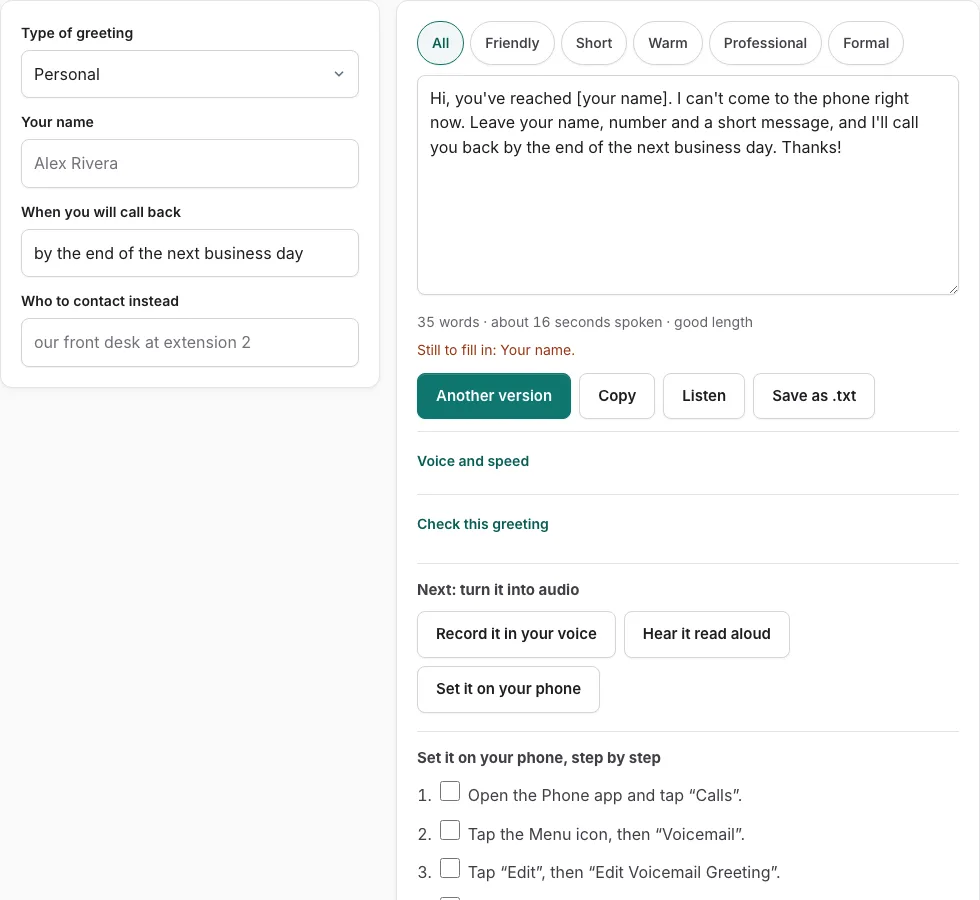
Steps to set your AT&T Wireless greeting
Write or pick your script in the tool above first, then follow the official steps below. Tick each step as you go.
Before you start
- Visual Voicemail: smartphone on an AT&T voice+data plan that includes Visual Voicemail, on the AT&T network, set up on your own phone.
- Voicemail must be set up within 60 days of activation.
iPhone (AT&T device-support page, iPhone 15)
- Open the Phone app and tap “Calls”.
- Tap the Menu icon, then “Voicemail”.
- Tap “Edit”, then “Edit Voicemail Greeting”.
- Choose “Custom” and use “Record” and “Stop”.
First-time setup (greeting prompts)
- iPhone: Phone > “Voicemail” > “Set Up”, follow the prompts for password and greeting.
- Samsung: open the Visual Voicemail app and follow the prompts.
- Basic voicemail: press and hold 1, choose language, create a 7-15 digit password and follow the prompts.
Limits stated by the source: No greeting length stated. Message limits: Visual up to 4 min per message, Basic 2 min per message (messages, not greetings).
Good to know
- AT&T’s KM1009187 article covers first-time setup and points to att.com/device-support tutorials for changing the greeting; the steps above come from the iPhone 15 device-support page.
Sources, checked 2026-10-27: Apple iPhone 15 - Editing your voicemail greeting - AT&T; Set up Voicemail on Your AT&T Mobile Phone - AT&T
How do I change my AT&T voicemail greeting?
AT&T publishes greeting-edit steps for the iPhone, so iPhone owners can follow them directly. For other phones, AT&T’s pages do not list greeting-change key presses, so this page does not give any. AT&T’s setup article for Basic and Visual Voicemail covers first-time setup.
Start with the greeting generator above the steps, because the words you choose decide how much you need to record. Once your script is ready, follow the official steps below the tool and tick each one off as you go. If your phone is not an iPhone, check your phone’s own settings or AT&T’s support pages for the greeting option before you record anything. Follow the steps in order, and do not skip ahead to recording. If a step does not match what your phone shows, stop and check AT&T’s support pages rather than guessing a key sequence.
What should a voicemail greeting say?
A good greeting names you, explains briefly why you cannot answer, tells the caller what to leave and says when you will reply. Those four parts give the caller what they need and keep the message short. Skip jokes, long apologies and personal details, since callers may not know who you are.
Keep the greeting short. The length line under the generator estimates the seconds your recording will run, so read your script aloud at a normal pace and compare the two before you record. A shorter greeting also means callers reach the point of leaving a message sooner.
Record in a quiet room, with the phone about a hand’s width from your mouth. Speak at the pace you used when timing the script. Background noise, wind and an echoing room are the most common reasons a greeting sounds unclear.
After you record, call your own number from another phone. You will hear what callers hear, so you can catch mistakes, awkward pauses or noise before anyone else does. Update the greeting whenever your hours or availability change, so callers do not hear out-of-date information.
Frequently asked questions
Can I change my voicemail greeting?
Yes. AT&T publishes greeting-edit steps for the iPhone, and this page follows those steps. For other phones, the pages we read do not list greeting-change key presses, so none are given here.
How long should my AT&T voicemail greeting be?
Keep it short. The length line under the greeting generator estimates the seconds your recording will take, so check it against your script before you record.
How do I test my voicemail greeting?
After you record, call your own number from another phone. You will hear exactly what callers hear, which makes it easy to catch mistakes or background noise.
How often should I update my greeting?
Update it whenever your hours or availability change. An out-of-date greeting can send callers to the wrong place or leave them waiting for a reply that is not coming.
Does this page cover first-time voicemail setup?
No. AT&T’s setup article covers first-time setup for Basic and Visual Voicemail. Use it first if you have not set up voicemail yet, then return here to change your greeting.
Why does this page not list key presses for my phone?
AT&T’s own pages leave gaps, so this page only gives steps that AT&T has published. Some other pages include shortcuts with no source, and we leave those out so you do not end up in the wrong menu.
Related tools
- How to Change Voicemail Greeting on iPhone: Use it when the greeting is ready and you need the steps for iPhone.
- How to Change Voicemail Greeting on Android: Use it when the greeting is ready and you need the steps for Android.
- How to Change Voicemail Greeting on Samsung: Use it when the greeting is ready and you need the steps for Samsung.
- How to Set Up Google Voicemail Greeting: Use it when the greeting is ready and you need the steps for Google Voice.
- How to Change Voicemail Greeting on Verizon: Use it when the greeting is ready and you need the steps for Verizon.
- How to Change Voicemail Greeting on Teams: Use it when the greeting is ready and you need the steps for Microsoft Teams.
- Voicemail Greeting Generator: Use it for greeting scripts for 17 situations.
- How to Set a Voicemail Greeting: Use it to browse iPhone, Android, Samsung, carriers and office phone systems.