
How to Change Voicemail Greeting on Android
Write the greeting first, then see which Android route applies: Take a Message or your carrier's voicemail.
Free · runs in your browser · nothing is uploaded
How to change voicemail greeting on Android depends on which feature you mean: Google documents Take a Message greetings of up to 60 seconds, while the carrier greeting is set with your carrier. Write the words with the greeting generator above, then follow the official steps below it, ticking off each check box as you finish it.
Google’s Phone app covers Visual Voicemail setup and a feature called Take a Message, which lets you record a custom greeting of up to 60 seconds. Google’s help does not include a page on recording your carrier greeting, so this guide points you to your carrier’s pages for that part.
The guide also covers what to say, how long the greeting should run, and how to check that it sounds right before a caller hears it. Read the explanations below the steps for those points.
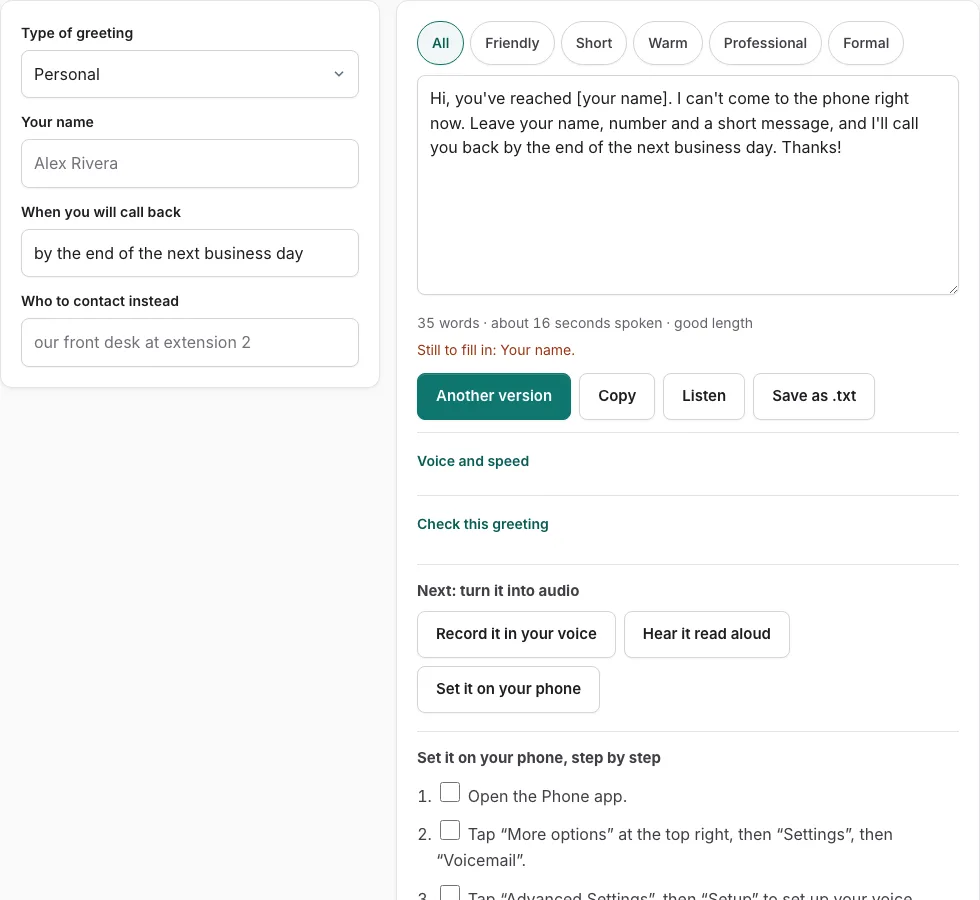
Steps to set your Android greeting
Choose your script above, then follow the official steps below. Tick each step off as you go.
Before you start
- Visual voicemail in the Phone app works only with certain carriers and countries. For AT&T, the data plan must include visual voicemail.
- Take a Message needs the latest Phone app and carrier conditional call forwarding. Transcription needs Pixel 6 or later in a supported region.
Open voicemail setup in the Phone app
- Open the Phone app.
- Tap “More options” at the top right, then “Settings”, then “Voicemail”.
- Tap “Advanced Settings”, then “Setup” to set up your voice mailbox.
Take a Message (answers missed/declined calls with your own greeting)
- Open the Phone app.
- Tap “Menu”, then “Settings”, then “Take a Message”.
- Turn on “Take a Message”. Google says you can record a custom greeting of up to 60 seconds and keep several greetings; the fetched page does not list the recording screens.
Limits: Take a Message greeting up to 60 seconds; Google Fi app greeting up to 40 seconds.
Good to know
- Google’s Phone app help does not cover the carrier voicemail greeting; see the Verizon and AT&T pages on this site.
- Using the carrier’s own voicemail app turns off visual voicemail in the Phone app.
- Take a Message is turned off while roaming.
Sources checked 2026-10-27: How to check your voicemail - Phone app Help; Use Take a Message for calls you miss or decline - Phone app Help
How do I change my voicemail greeting on Android?
You can change your Android greeting in one of two ways: record a custom greeting with Take a Message in Google’s Phone app, which allows up to 60 seconds, or keep the carrier greeting, which Google’s help does not cover. Google’s help for Visual Voicemail setup gives this path:
- Phone
- More options
- Settings
- Voicemail
- Advanced Settings
- Setup
That path belongs to Visual Voicemail setup, not to Take a Message, so follow it when you are setting up Visual Voicemail. For the carrier greeting, use the Verizon or AT&T pages on this site.
Before you start, choose or write your script with the greeting generator above the steps. Each step has a check box, so you can tick it off as you go.
What should a voicemail greeting say, and how long should it be?
A good greeting names you, says you cannot answer right now, tells the caller what to leave, and states when you will reply. It should also be short enough that callers do not hang up before the beep.
Google’s limits set the boundaries. Take a Message allows up to 60 seconds, and the Google Fi app greeting is limited to 40 seconds. If you want one greeting that works with either limit, keep it under 40 seconds. Use the length estimate in the greeting generator to check the timing before you record.
Record in a quiet room, with the phone about a hand’s width from your mouth, so your voice comes through clearly. Then test it: call your own number from another phone and listen to exactly what callers hear. If the greeting is cut off, too quiet, or too long, re-record it and test again. Update the greeting whenever your hours or availability change, so the message stays accurate.
Frequently asked questions
Can I record my own greeting with Google’s Phone app?
Yes. Take a Message lets you record a custom greeting of up to 60 seconds, according to Google. Write your script in the greeting generator above first, so you know what to say before you press record.
Where do I find Voicemail settings on Android?
Google’s help for Visual Voicemail setup gives this path: Phone, More options, Settings, Voicemail, Advanced Settings, Setup. That path belongs to Visual Voicemail setup, so follow it when you want to set up that feature.
Why doesn’t Google’s help explain my carrier greeting?
Google’s Phone app has no page on recording the carrier greeting. The Verizon and AT&T pages on this site cover the carrier greeting for those carriers.
How long can an Android voicemail greeting be?
Take a Message allows up to 60 seconds, and the Google Fi app limits its greeting to 40 seconds. Keeping your greeting under 40 seconds means it fits both limits.
How often should I update my voicemail greeting?
Update it whenever your hours or availability change. A greeting that says you are away when you are back can confuse callers and make them leave messages you never need.
Related tools
- How to Change Voicemail Greeting on iPhone: Use it when the greeting is ready and you need the steps for iPhone.
- How to Change Voicemail Greeting on Samsung: Use it when the greeting is ready and you need the steps for Samsung.
- How to Set Up Google Voicemail Greeting: Use it when the greeting is ready and you need the steps for Google Voice.
- How to Change Voicemail Greeting on Verizon: Use it when the greeting is ready and you need the steps for Verizon.
- How to Change Voicemail Greeting on AT&T: Use it when the greeting is ready and you need the steps for AT&T.
- How to Change Voicemail Greeting on Teams: Use it when the greeting is ready and you need the steps for Microsoft Teams.
- Voicemail Greeting Generator: Use it for greeting scripts for 17 situations.
- How to Set a Voicemail Greeting: Use it to browse iPhone, Android, Samsung, carriers and office phone systems.