
Auto Attendant Script Generator
Generate structured auto attendant and IVR phone tree scripts that direct incoming callers quickly and professionally.
Free · runs in your browser · nothing is uploaded
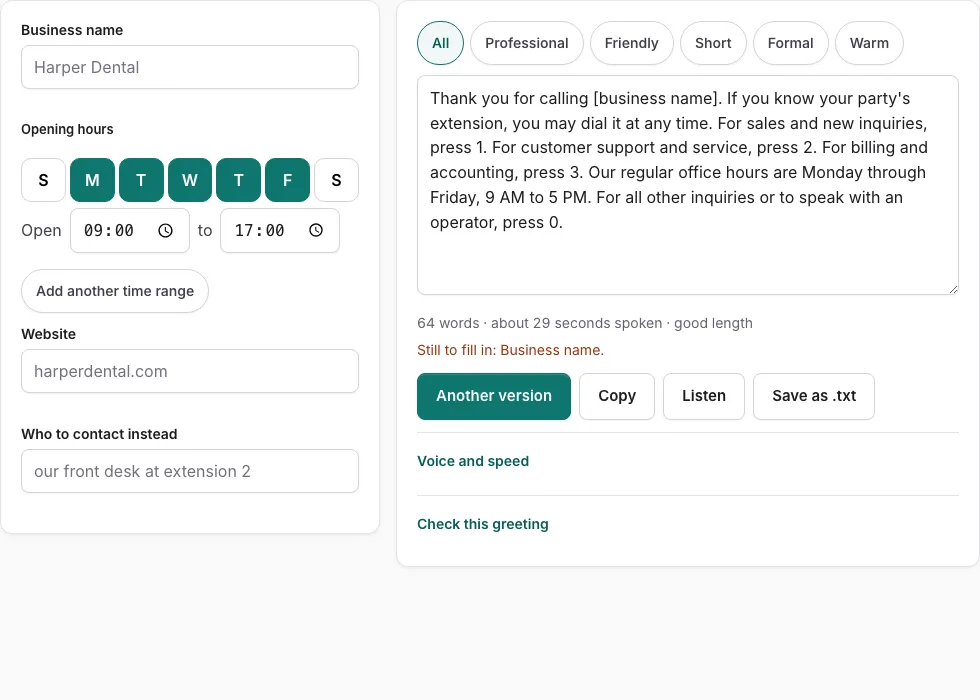
How to use the Auto Attendant Script Generator
Follow these guidelines to draft and customize an effective multi-level auto attendant phone tree script.
- Enter your official company name in the Business Name field above.
- Specify your standard business operating hours so the script can announce your availability.
- Add your primary website address so callers seeking self-service have an alternative digital route.
- If applicable, enter secondary contact options such as an urgent dispatch line or online support portal.
- Select a tone from the options (Professional, Friendly, Formal, Short, or Warm) to view corresponding scripts.
- Review the script text on the right; customize any department names to reflect your internal team structure.
- Click “Listen” to hear the menu read aloud and verify that pacing between department options sounds natural.
- Monitor the word count and estimated speaking seconds under the script box to ensure the greeting stays under 35 seconds.
- Click “Check this greeting” to verify that key information components are covered.
- Click “Copy” to save the text to your clipboard or “Save as .txt” to download a local copy for your voice talent.
- Upload the completed audio into your phone system’s auto-attendant or virtual receptionist settings.
Menu pacing recommendations
When recording your auto attendant, leave a brief half-second pause after reciting each option number. This natural breathing space gives callers time to locate and press the corresponding keypad digit without feeling rushed.
What makes an effective auto attendant script?
An effective auto attendant script follows a proven psychological principle: always state the destination or department name before the keypad digit (e.g., “For customer service, press 2”).
Callers listen for their intended goal first. If you say “Press 2 for customer service”, callers must retain the number while waiting to hear if the department matches, resulting in cognitive strain and frequent menu replays.
Golden rules of IVR menu design
- Limit Main Menu Options to Four or Five Choices: Human short-term auditory memory holds approximately four pieces of information comfortably. Offering nine options forces callers to wait through long recitations.
- Order Options by Inbound Call Volume: Place the most frequently requested department first (typically Sales or Customer Support) to minimize wait time for the majority of callers.
- Always Offer an Operator or Receptionist Escape: Provide a fallback option (such as “Press 0 for the operator”) for callers who are uncertain which department they need or who are calling from hands-free accessibility devices.
- Include a Repeat Prompt: End the main menu with a simple instruction to replay the choices (e.g., “To hear these options again, press 9”).
| Menu Option | Recommended Placement | Standard Script Phrasing |
|---|---|---|
| Sales / New Inquiries | First option (Press 1) | “For sales and new customer inquiries, press 1” |
| Support / Client Service | Second option (Press 2) | “For technical support and customer service, press 2” |
| Billing & Accounting | Third option (Press 3) | “For billing, invoices, and accounting, press 3” |
| Staff Directory | Fourth option (Press 4) | “To search our employee directory by name, press 4” |
| Operator / Fallback | Final option (Press 0) | “For all other inquiries, or to speak with an operator, press 0” |
Technical considerations for recording auto attendant audio
Auto attendant audio files play continuously on PBX systems and must maintain consistent volume across extensions:
- Audio Normalization: Normalize voice recordings to -1 dBFS peak level to ensure consistent loudness across different cellular networks and landlines.
- Format Compatibility: Export audio as 8 kHz or 16 kHz Mono WAV (PCM or G.711 u-law), which is supported by RingCentral, Nextiva, Zoom Phone, Dialpad, and 8x8.
- Pacing: Speak at a steady 130 words per minute with brief 0.5-second pauses between menu choices so callers have time to press their keypad.
Regularly auditing auto attendant performance
Review your PBX call routing analytics quarterly to verify which menu options receive the highest volume. If callers rarely select an option, consider moving it to a sub-menu to keep your primary auto attendant streamlined.
Frequently asked questions
Why should the department name come before the number in an IVR menu?
Stating “For sales, press 1” is easier to process because callers identify their goal first and then remember a single digit, reducing misdials and menu replays.
How many menu options should an auto attendant have?
Limit main menu choices to four or five options. If you have more departments, use sub-menus (e.g., pressing 2 for Support opens technical support versus billing).
How long should an auto attendant greeting be?
Keep auto attendant greetings under 30 to 35 seconds. Lengthy introductory announcements frustrate callers who need quick assistance.
Should I mention “Our menu options have changed”?
Only include this phrase if you have recently overhauled your department numbers, and remove it after 30 to 60 days to keep the greeting concise.
Can callers dial an extension immediately?
Yes. State “If you know your party’s extension, you may dial it at any time” at the beginning of the greeting to let returning clients bypass the menu.
How often should auto attendant scripts be updated?
Review your main menu quarterly to ensure employee directory names, department names, and operating hours accurately reflect current business operations.
What voice talent style works best for an auto attendant?
A warm, clear, professional voice recorded at conversational volume creates the best first impression for enterprise callers across corporate and service industries.
Related tools
- After Hours Auto Attendant Script Generator: Night IVR
- Business Voicemail Greeting Generator: Commercial scripts
- How to Set Voicemail Greeting on RingCentral: Cloud PBX
- How to Set Voicemail Greeting on Zoom Phone: Audio library
- Voicemail Greeting WAV Converter: 8 kHz telephone audio
- What to Say in a Voicemail Greeting: Content checklist